Skip to content
Skip
3.1k

ios

6 posts with the tag “ios”

Android development is now Compose First

Last week at Google I/O, the Android team announced (to audience cheers1) that all new Android UI will be Jetpack Compose going forward. The Android is Compose-first page on the developer site now states2:

Jetpack Compose is Android’s declarative UI toolkit, built for modern user interfaces, with dynamic data, rich graphics, and beautiful animations. It’s replacing the View toolkit, which has served Android development well for years, but was not designed for the latest demands and best practices.
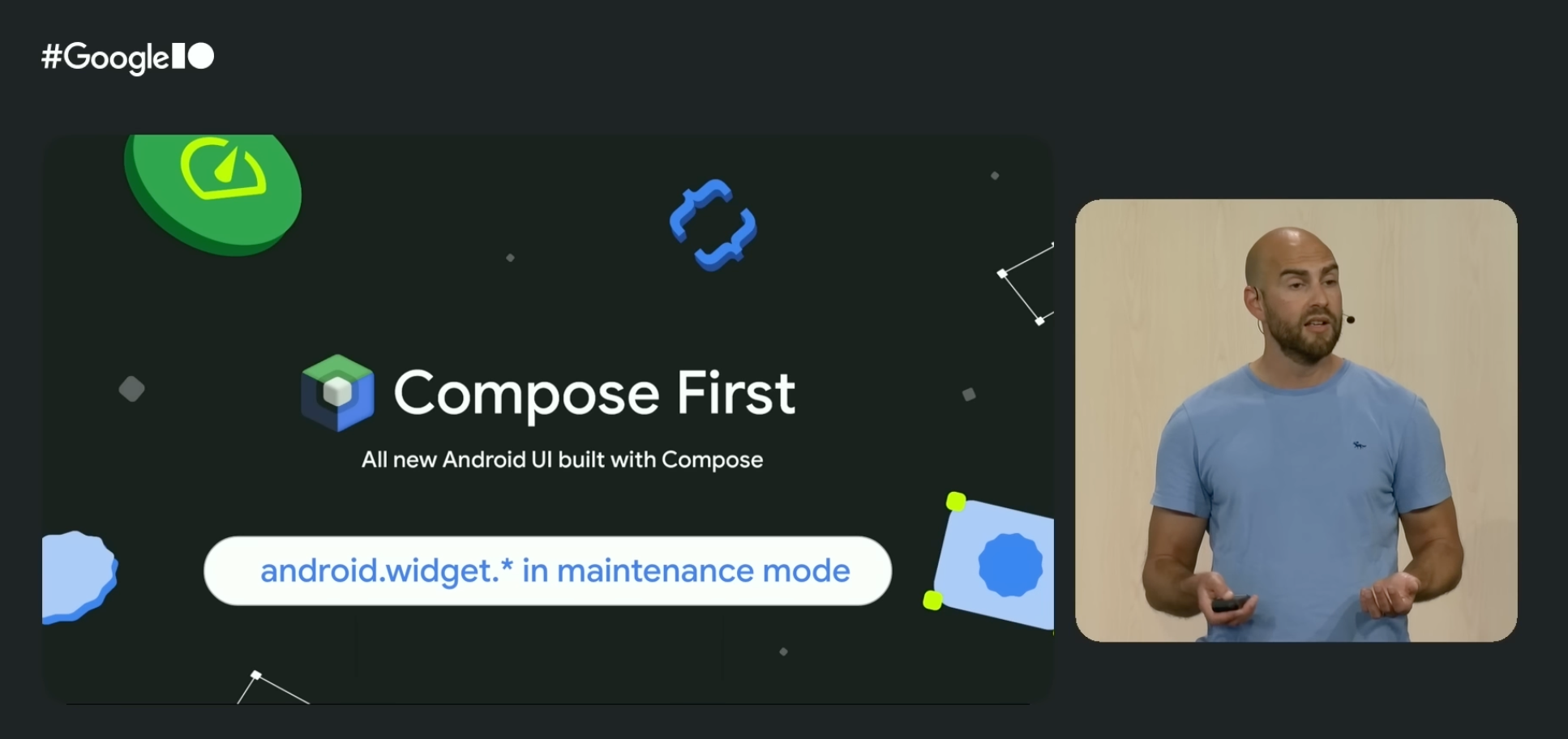
Slide from the Google I/O 2026 What's new in Android session reading 'Compose First — all new Android UI built with Compose' with the chip 'android.widget.* in maintenance mode' below it.

The same page declares that the old View system is, without quite saying “deprecated”, moribund technology:

We now consider the View toolkit (for example, classes in android.widget such as TextView and ListView) to be in maintenance mode — this means that it will only receive highly critical fixes.

The companion announcement covers the Jetpack libraries and Android Studio’s UI tooling as well: the View-based libraries are frozen at “critical fixes only”, and any new tooling in Android Studio will target Compose only. Existing View-era tools such as the Layout Editor and Navigation Editor will continue to receive only critical fixes in maintenance mode, but will not be enhanced and improved going forward.

For anyone tracking the Android platform over the last several years, this should come as no surprise: Compose has been the recommended toolkit for new development since 2021. But it is the clearest signal yet that the long transition is now effectively over. Compose is the future, and the Android View system — like UIKit on iOS — is legacy technology.

This is the right outcome for Android developers. Compose is a modern toolkit that embraces the industry’s trend towards a declarative state-driven user interface paradigm. It is where the platform’s investment is going, and it is what new APIs will be built around.

It is also an outcome that validates Skip’s unique approach. Skip has been “Compose-first” on Android since the day we first shipped, both in Skip Lite (where we transpile SwiftUI into idiomatic Compose) and in Skip Fuse (where we bridge native Swift to Compose directly). When you write List, NavigationStack, or TextField in your SwiftUI source, the Android side of your app builds a real Jetpack Compose tree using the same components that a Kotlin Android developer would reach for. There is no parallel widget hierarchy or custom renderer, and no second-class “Compose interop” mode. The Compose tree is the Android UI, just as the SwiftUI tree is the iOS UI.

Apple issued a symmetric declaration four years earlier in their Platforms State of the Union3:

The best way to build an app is with Swift and SwiftUI.

WWDC 2022 slide reading "The best way to build an app is with Swift and SwiftUI."

One of the fundamental principles of Skip is that it simply doesn’t exist on iOS. The Apple side of a Skip app is the same Xcode project and App struct and SwiftUI view hierarchy that an iOS-only team would produce. While we do have plenty of platform and integration frameworks that help provide unified API surfaces between iOS and Android libraries, the Skip toolchain itself, on iOS, is invisible at runtime. Skip’s build plugin assembles and launches the Android counterpart of your app side-by-side with the iOS build, but it does not wrap or intermediate your SwiftUI views. When you write Text("Hello") in a Skip project, the iOS binary contains a Text("Hello") — nothing more and nothing less.

This is what we mean when we say Skip is not an intermediation layer on iOS. There is no abstraction between your code and Apple’s frameworks for a SwiftUI compiler to optimize through, and no compatibility layer for an OS upgrade to break. You are not running a “Skip-flavoured” SwiftUI: you are running SwiftUI.

A practical consequence showed up last summer, when Apple unveiled their new Liquid Glass design language at WWDC 2025. Regardless of how one feels about this aesthetic redesign, every existing Skip app automatically picked it up the day the first developer beta shipped. There was no Skip update required and no SwiftUI compatibility layer to upgrade. Liquid Glass is implemented inside Apple’s frameworks, and Skip apps use Apple’s frameworks directly; therefore Skip apps look like the rest of iOS automatically. The same will be true for the next design refresh, and the one after that. This sort of guaranteed future-compatibility is essential for teams that prioritize harmony with the platform and alignment with the first-party SDKs.

Why other cross-platform frameworks struggle to keep up

Section titled “Why other cross-platform frameworks struggle to keep up”

The Compose-first Android announcement, along with last year’s Liquid Glass unveiling, are both instructional opportunities to scrutinize the structural issues that other cross-platform UI tools have.

Cross-platform UI frameworks generally fall into one of two camps:

  1. Pixel-painted widgets: Flutter is the most obvious example. Flutter draws its own buttons, switches, scrollbars, and navigation chrome by using Skia (now Impeller) to paint raw pixels into a canvas. The result is a single widget set that looks similar on every platform, along with optional “Cupertino” and “Material” widget sets that try to mimic the real native look and feel of the platform. Compose Multiplatform, on the iOS side, also falls into this category: while it is real Jetpack Compose on Android, on iOS it takes the same pixel-painting approach to mimicking the native UI as Flutter does.

  2. Legacy-technology bridges: React Native sits a bit closer to the platform but still maintains its own component hierarchies on each side. It exposes a limited set of platform widgets to a JavaScript runtime through a bridge. This has the benefit of using “real” components (typically UIKit views on iOS and Android Views on Android), but lays them out using their own CSS-derived styling that can deviate from evolving platform conventions.

Both approaches share the same downside: when the platform changes, the framework must catch up. Each new design language is a project and every new control variant has to be re-implemented. When Apple shipped Liquid Glass, the response from the Flutter team was straightforward about their architectural limitations in their response on the subject:

As with Material 3 Expressive, we are not developing the new Apple’26 UI design features in the Cupertino library right now, and we will not be accepting contributions for these updates at this time.

A year on, Liquid Glass support has still not landed in any major cross-platform UI toolkit’s iOS layer. Flutter’s Cupertino widgets still look like iOS 18, and will be stuck there for the foreseeable future. Compose Multiplatform on iOS still renders like an Android Material Design app painted onto an iPhone screen. React Native apps inherit whatever underlying native control they wrap, but the parts of the app the framework draws itself — sheets, navigation transitions, list rows — do not change.

Skip avoids — or “skips” — this entire class of problem altogether. On Android the toolkit is Compose because Skip emits Compose. On iOS the toolkit is SwiftUI because Skip doesn’t exist there. Skip is the only cross-platform development tool that uses the platform-recommended UI toolkit on both iOS and Android; that is the value proposition.

We expand on this topic at length in our comparison of cross-platform options. The short version is that an app built with a UI framework that mimics the platform always trails the platform; an app built with a UI framework that is the platform never does.

Apple’s WWDC conference starts next week. We don’t know what will be on the keynote stage. There is the usual swirl of rumor and speculation, and our guess is as good as anyone else’s. What we do know is that whatever ships, Skip apps will adopt it on day one, for the same reason that we supported Liquid Glass on day one: Skip does not stand between your code and SwiftUI. And now that Android is an officially supported platform for the Swift language, we can state with confidence that nothing that happens in the language itself will ever be unsupportable on the Android side, regardless of whether you use Skip Lite’s transpiled mode or Skip Fuse’s compiled mode.

We at Skip have always said:

Squint hard enough and Kotlin looks like Swift.

Squint really hard, and Jetpack Compose looks like SwiftUI.

These two declarative state-driven reactive toolkits are aligned in theory, they just happen to be drastically different in implementation. At its essence, all Skip does is bridge the divide, allowing you to create a single unified codebase that targets both native toolkits without having to write — and maintain — your app twice.

We are excited about what is coming. We will be watching the keynote and “State of the Union” with the rest of you, and we will be ready to write about whatever lands. The one thing we will not have to write about is “when will Skip support this.” We already have the answer: day one, now and forever.

  1. Nick Butcher, Ash Nohe, and Daniel Galpin, What’s new in Android, Google I/O 2026.

  2. Android is Compose-first, Android Developers, May 2026.

  3. Sebastien Marineau-Mes, Platforms State of the Union, WWDC 2022.

Fully Native Cross-Platform Swift Apps

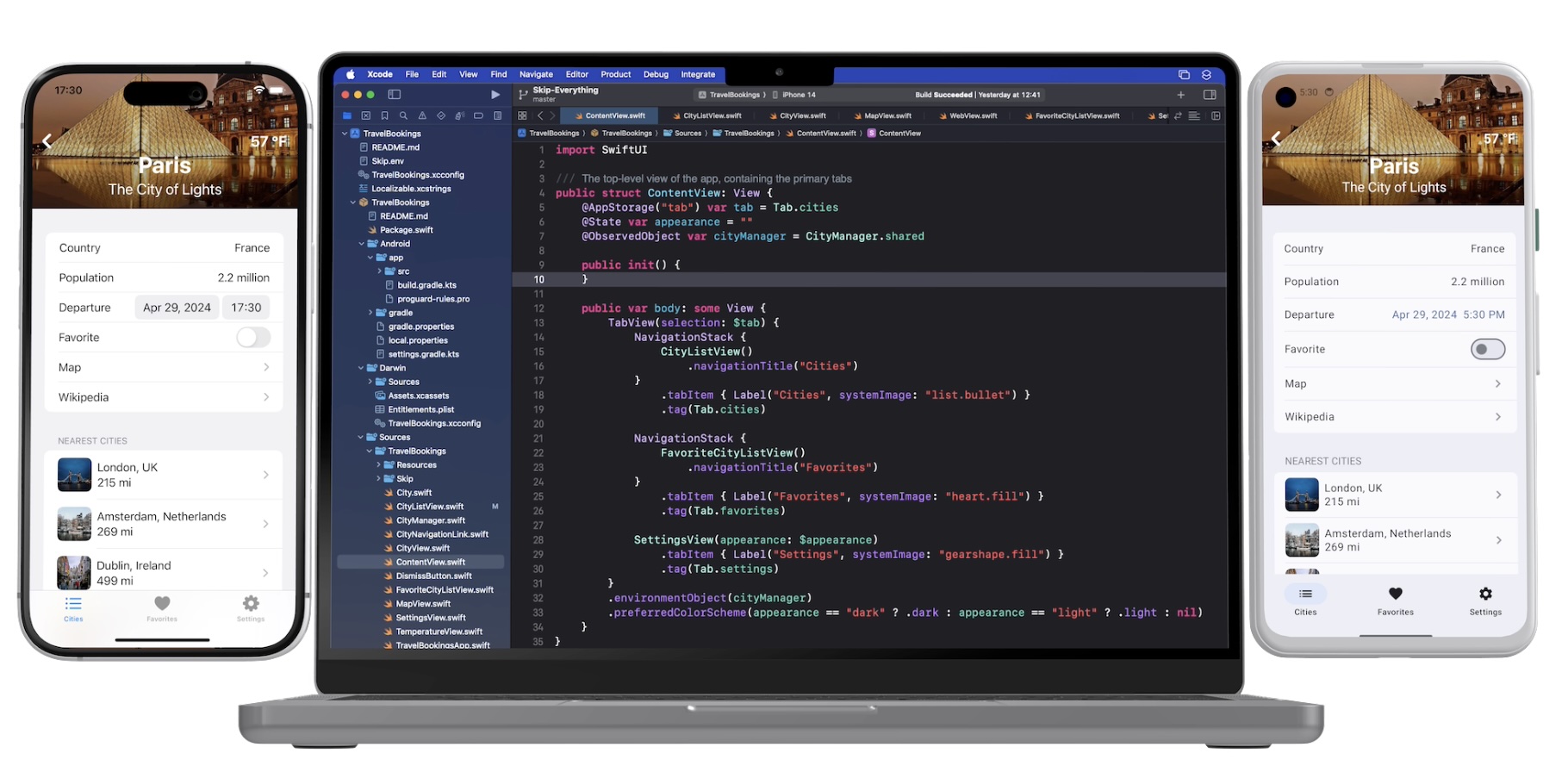
Screenshot

In our series on using native Swift on Android, we have covered the basics of the Swift-Android toolchain in Part 1, bridging between compiled Swift and Kotlin in Part 2, and the creation of a cross-platform app with a shared Swift model layer in Part 3.

We are pleased to unveil the culmination of all of this work: Skip 1.5 now has the ability to create a 100% native Swift and SwiftUI app for both iOS and Android! You can now enjoy the safety, efficiency, and expressiveness of pure Swift throughout your entire cross-platform app, including the ability to tap into the vast ecosystem of Swift packages to support your app development.

This blog post will go over the process of creating and developing a Swift cross-platform app, explore the underlying technologies, and discuss our current status and next steps.

Ensure that you are on a macOS 14+ machine with Xcode 16, Android Studio 2025, and Homebrew installed.

First, create and launch an Android emulator for testing.

Next, open Terminal and type the following commands to install Skip and the native Swift-Android toolchain.

$ brew install skiptools/skip/skip
$ skip upgrade
$ skip android sdk install

Verify that everything is working with an additional Terminal command:

$ skip checkup --native

You’re now ready to create your first fully native cross-platform Swift app:

$ skip init --native-app --open-xcode --appid=bundle.id.HowdySkip howdy-skip HowdySkip

Assuming the app initialized successfully, your project will open in Xcode. Run the app against an iPhone simulator destination (the first build may take some time) and your app will launch on both the iOS simulator and the running Android emulator at the same time!

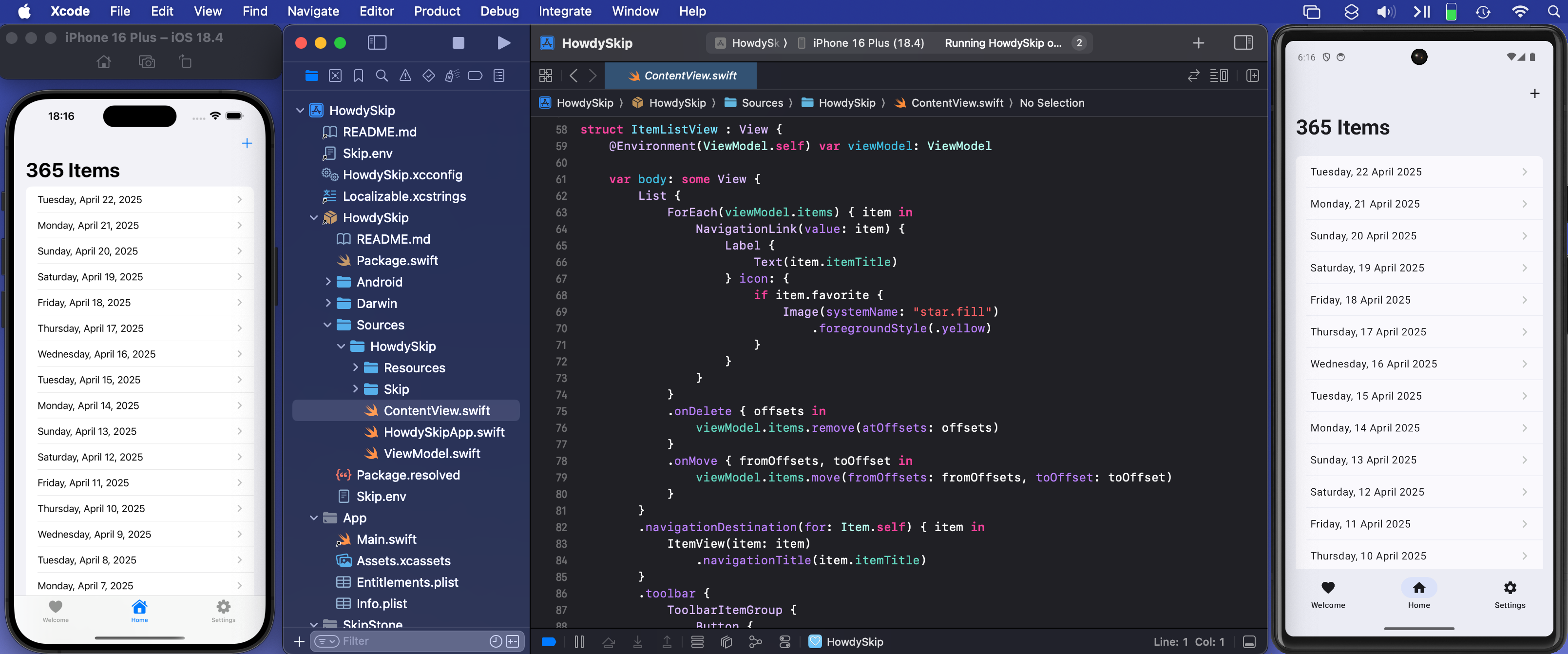
The skip init command creates a template app to get you started. It is a TabView containing a “Welcome” view, a list of editable and re-orderable “Items”, and a “Settings” view:

Screenshot of the Howdy Swift native app Welcome Tab

Rather than importing SwiftUI, you will notice that the Sources/HowdySkip/ContentView.swift file instead imports SkipFuseUI. When building for iOS, this simply redirects to a SwiftUI import. Skip’s philosophy is to not intrude on the iOS side of the application: on Darwin platforms you are still using direct, non-intermediated SwiftUI, just as if you were building an app without Skip at all.

On Android, however, the SkipFuseUI module bridges the SwiftUI API onto Jetpack Compose, Android’s modern Kotlin UI toolkit. It does this through the intermediate SkipUI module. Bridging to pure Jetpack Compose gives Android users a fully native user experience rather than the uncanny-valley replica generated by many cross-platform frameworks.

Diagram of Skip's Swift-on-Android build process

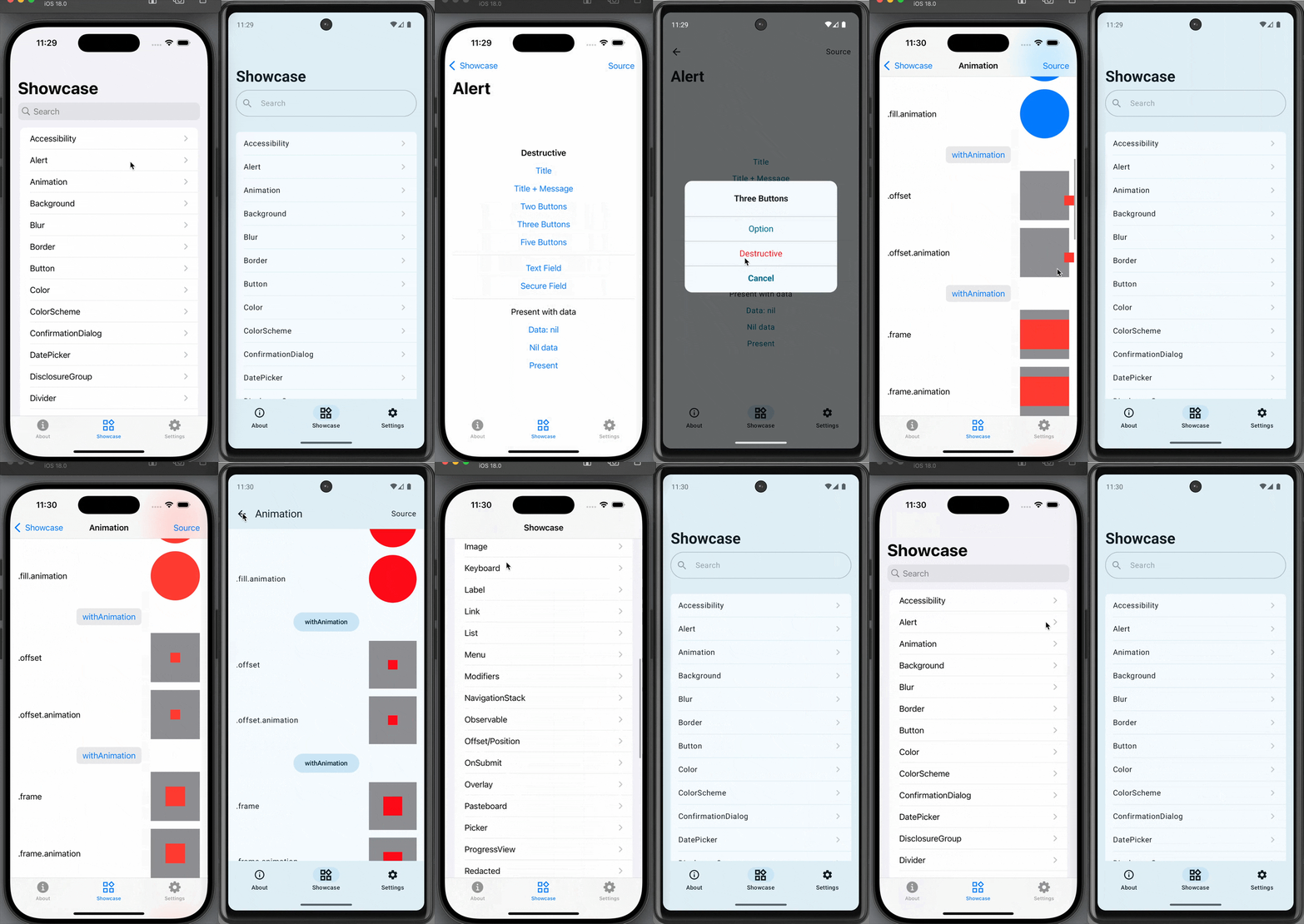
Consult the SkipUI module’s documentation for a listing of currently-supported SwiftUI constructs on Android. You can also examine the Showcase cross-platform sample app, which displays and exercises most supported SwiftUI components:

Screen recording

The “Items” tab displays an editable list of items which are managed by Sources/HowdySkip/ViewModel.swift, which handles loading and saving the list of items to a simple JSON file. This code uses standard Foundation types (URL, Data, Date, FileManager, JSONEncoder, JSONDecoder, etc.) to handle the management and persistence of the items. Note that unlike the SwiftUI in ContentView, none of this code is bridged into Kotlin: it is using the Apple swift-foundation types directly, just as on iOS.

Screenshot of the Howdy Swift native app List Tab

Despite only using native Foundation types, you will notice that ViewModel.swift imports SkipFuse. Just as SkipFuseUI bridges your UI to Android, SkipFuse bridges model-layer code. We use it here to enable our @Observable view model to communicate changes to the Jetpack Compose user interface. This is discussed further in Part 2 of the series. You generally don’t need to be concerned with the details other than to remember to import SkipFuse (or SkipFuseUI) any time you implement an @Observable.

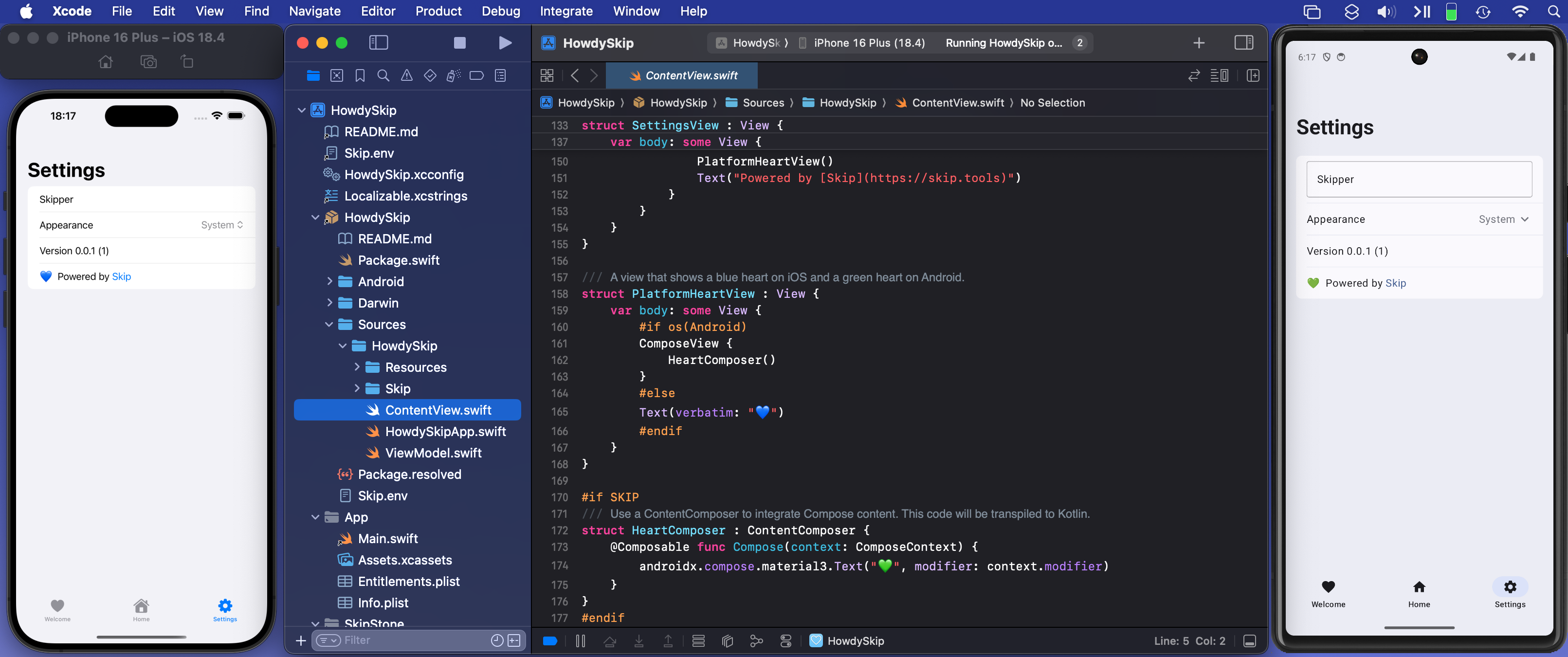
The final tab of the sample app is the “Settings” screen. This exposes various settings and displays some information about the app. It also presents a little heart emoji, which is blue on iOS and green on Android.

Screenshot of the Howdy Swift native app Settings Tab

We use the green heart emoji to demonstrate a powerful feature of Skip: the ability to embed code that directly calls Kotlin and Jetpack Compose APIs! Examining the SettingsView in ContentView.swift, you will see the inclusion of a PlatformHeartView, whose implementation looks like this:

/// A view that shows a blue heart on iOS and a green heart on Android.
struct PlatformHeartView : View {
var body: some View {
#if !os(Android)
Text(verbatim: "💙")
#else
ComposeView {
HeartComposer()
}
#endif
}
}
#if SKIP
/// Use a ContentComposer to integrate Compose content. This code will be transpiled to Kotlin.
struct HeartComposer : ContentComposer {
@Composable func Compose(context: ComposeContext) {
androidx.compose.material3.Text("💚", modifier: context.modifier)
}
}
#endif

What is going on here? Notice that on Android, we’re rendering the heart with a ComposeView, a special SwiftUI view for including Jetpack Compose content in the form of a ContentComposer.

/// Encapsulation of Composable content.
public protocol ContentComposer {
@Composable func Compose(context: ComposeContext)
}

But how can we define @Composable functions and call Android APIs from within our native Swift code?

The magic lies in Skip’s ability to transpile Swift code into Kotlin, and SkipFuse’s ability to bridge between Kotlin and your compiled Swift. Any code in a #if SKIP block will be transformed into the equivalent Kotlin, so it is free to call other Kotlin and Java APIs directly. The generated #if SKIP Kotlin will also be automatically bridged so that you can call it from your native Swift.

Diagram of Skip's custom Compose view embedding

Screen recording

The ability to effectively embed Kotlin code is immensely powerful. It not only provides direct access Jetpack Compose and the Android SDK, but also enables you to tap into the complete Android ecosystem of libraries through Kotlin and Java dependencies.

Of course, using native Swift allows you to take advantage of the vast and growing ecosystem of available Swift packages as well. In our post on Bringing Swift Packages to Android we introduced the swift-everywhere.org site that tracks packages that are successfully building for Android. Since that post, community members have been implementing Android support, bringing the number of known packages that can be used on Android to 2,240! Popular projects like Alamofire, flatbuffers, SwiftSoup, swift-protobuf, and swift-sqlcipher (just to name a few) can be added directly to your app and used in the same way on both iOS and Android.

Skip’s unique ability to directly call both Swift and Kotlin/Java APIs separates it from most cross-platform development frameworks, where integrating with the host system often requires bespoke adapters and extra layers of indirection.

As a demonstration and validation of this technology, we have published one of our sample apps, Skip Showcase, to both the Google Play Store and Apple App Store. This fully native Swift app demonstrates parity between SwiftUI components on iOS and Android.

Download on the Google Play Store Download on the Apple App Store

Despite being generally available, Skip’s native support is currently a technology preview. We are working on updating our documentation, finding and squashing remaining bugs and limitations, reducing build times, and generating smaller Android binaries. Even as a preview, however, you can build complete, production-ready cross-platform Swift apps, as Skip Notes demonstrates.

Cross-platform Swift and SwiftUI have been a dream of ours for a long time. We are immensely excited about the possibilities this unlocks for creating truly best-in-class apps for both iOS and Android from a single codebase!

Skip 1.0 Release

Screenshot

We’re thrilled to announce the release of Skip 1.0!

Skip brings Swift app development to Android. Share Swift business logic, or write entire cross-platform apps in SwiftUI.

Skip is the only tool that enables you to develop genuinely native apps for both major mobile platforms with a single codebase. Under the hood, it uses the vendor-recommended technologies on each OS: Swift and SwiftUI on iOS, Kotlin and Compose on Android. So your apps don’t just “look native”, they are native, with no additional resource-hogging runtime and no uncanny-valley UI replicas.

Skip also gives you complete access to platform libraries. Directly call any Swift or Objective C API on iOS, and any Kotlin or Java API on Android - no complex bridging required!

Skip has been in development for over a year. It has an enthusiastic community of users developing a wide range of apps and continually improving Skip’s ecosystem of cross-platform open source libraries.

Scrumskipper: Running Apple's SwiftUI sample app on Android

Scrumdinger is Apple’s canonical SwiftUI iPhone app. In this post, we’ll use Skip to run Scrumdinger as a native Android app as well!

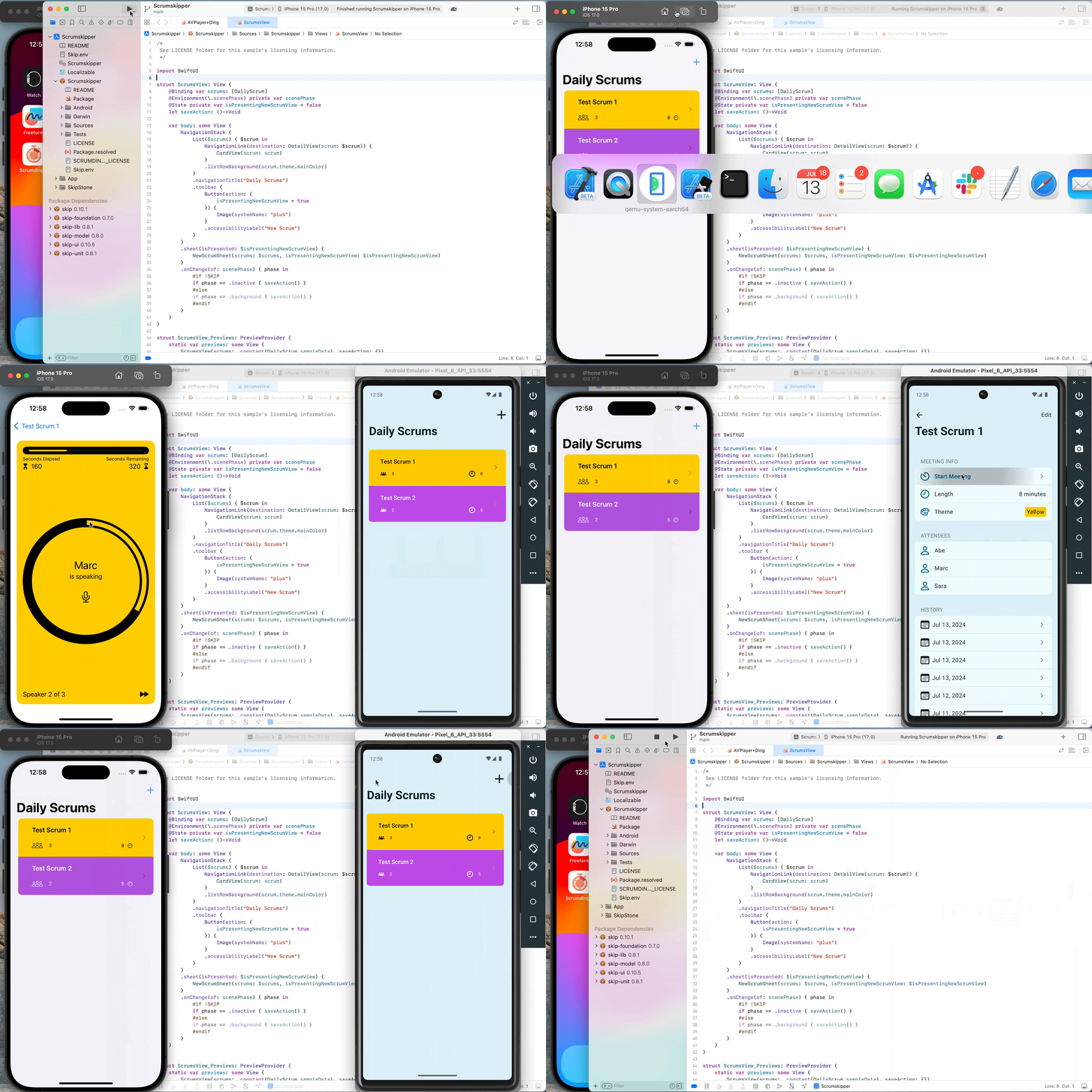
Recording of Scrumdinger app operating on iOS and Android simultaneously

Honed and updated over the years, Apple’s Scrumdinger tutorial is an hours-long step-by-step guide to building a complete, modern SwiftUI app. It exercises both built-in UI components and custom drawing, and it takes advantage of Swift language features like Codable for persistence. As its rather unique name implies, the Scrumdinger app allows users to create and manage agile programming scrums on their phones.

This blog post begins where Apple’s tutorial ends. We’ll start with the final Scrumdinger source code and walk you through the process of bringing the full app to Android using Skip. You’ll learn the general steps involved in bringing an existing app to Android, and you’ll become familiar with the types of issues you may encounter and how to overcome them. Let’s get started!

You can get the full Scrumdinger source code from the last page of Apple’s SwiftUI tutorial. Here’s a direct link to the zipped Xcode project:

https://docs-assets.developer.apple.com/published/9d1c4a1d2dcd046ee8e30ad15f20f6f3/TranscribingSpeechToText.zip

Download and expand the zip file. Assuming you have the latest Xcode installed, you can run the iPhone app by opening TranscribingSpeechToText/Complete/Scrumdinger.xcodeproj. The first time you attempt to open it, you may need to confirm that you trust the download. Once Xcode has loaded the project, select the iOS Simulator you’d like to use and hit the Run button!

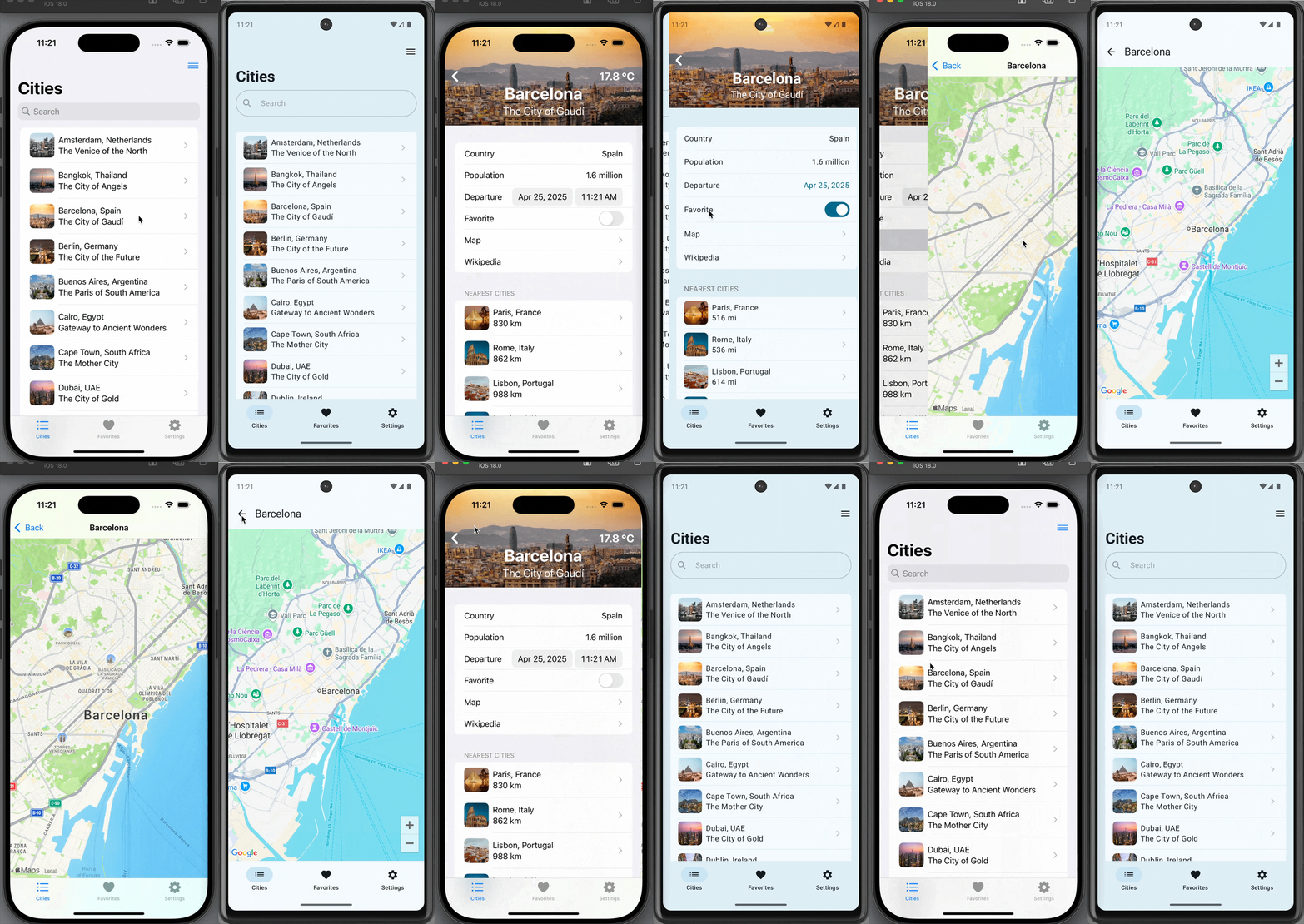
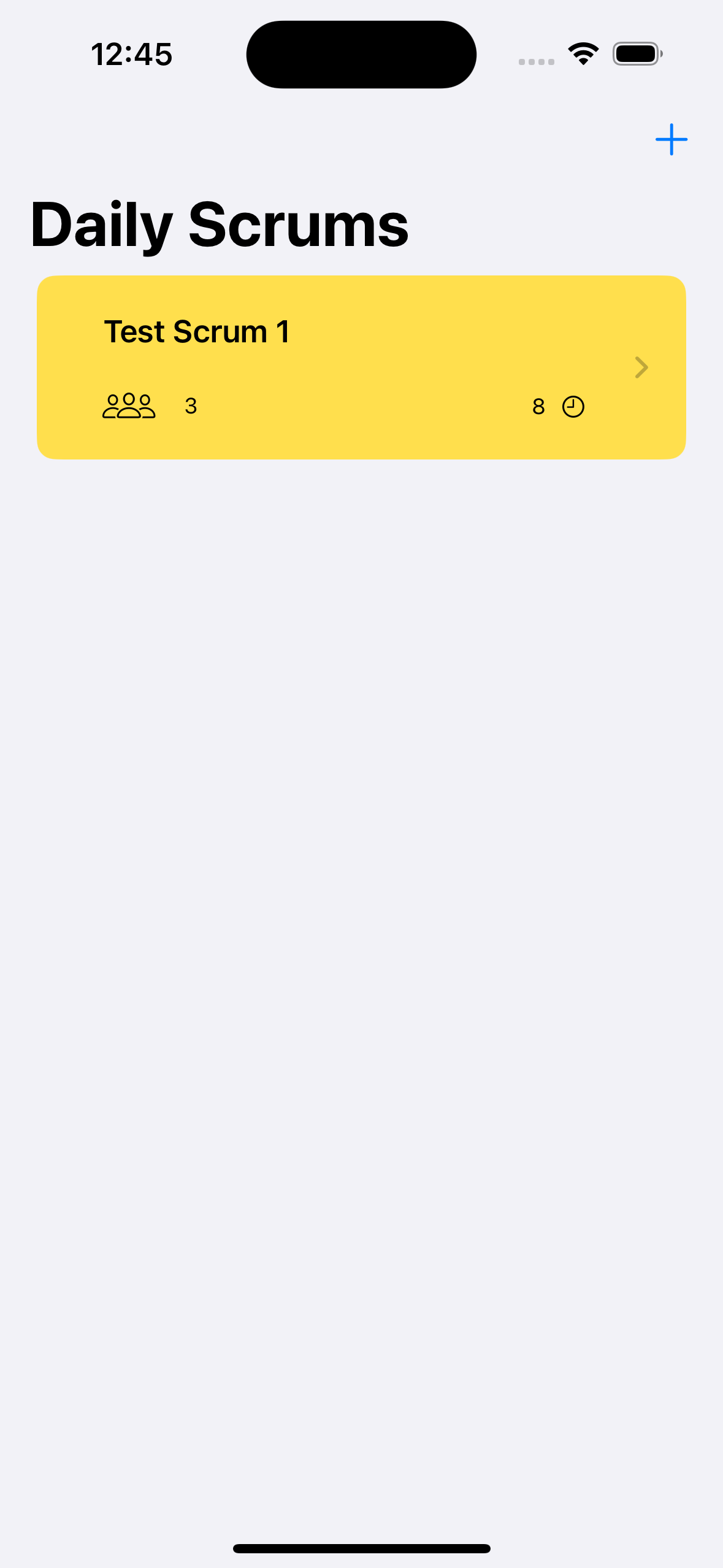
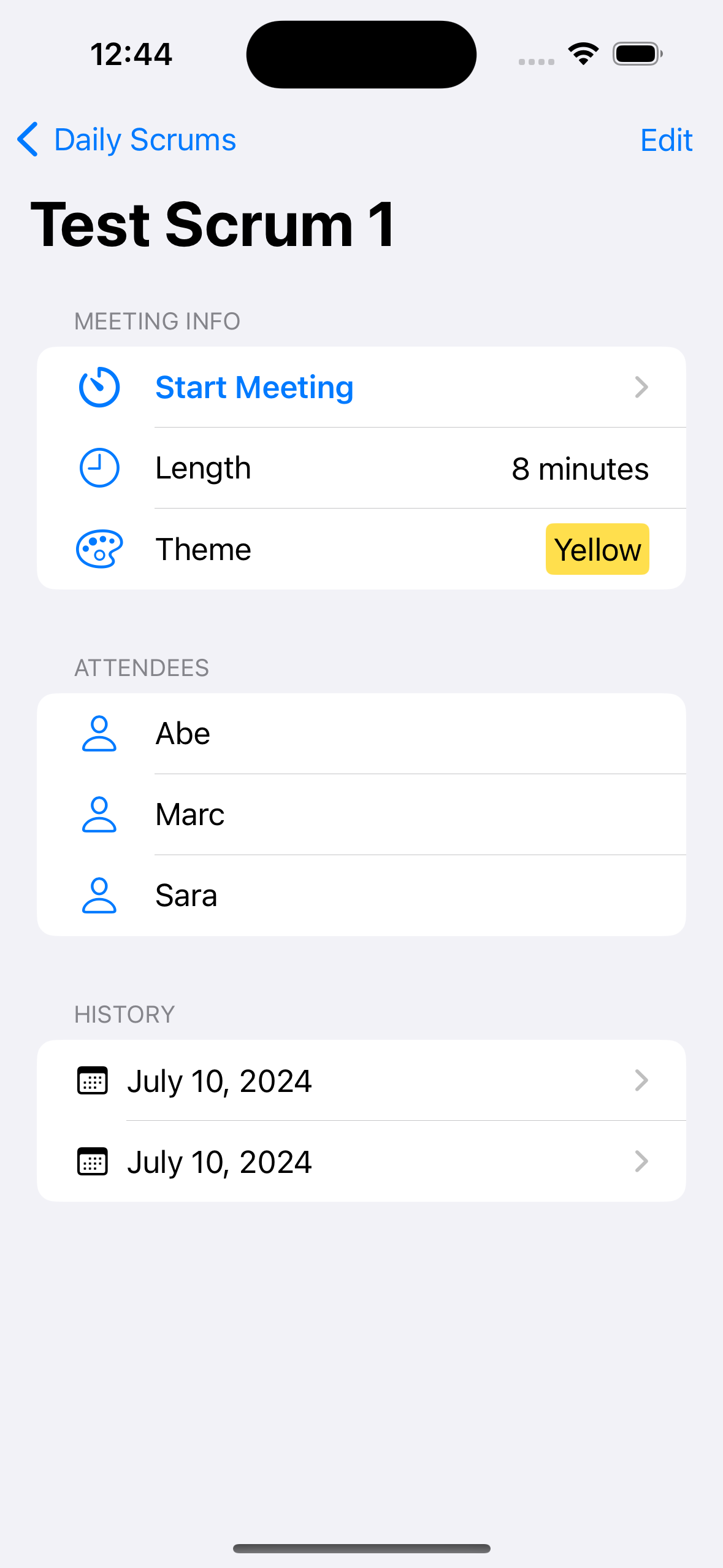
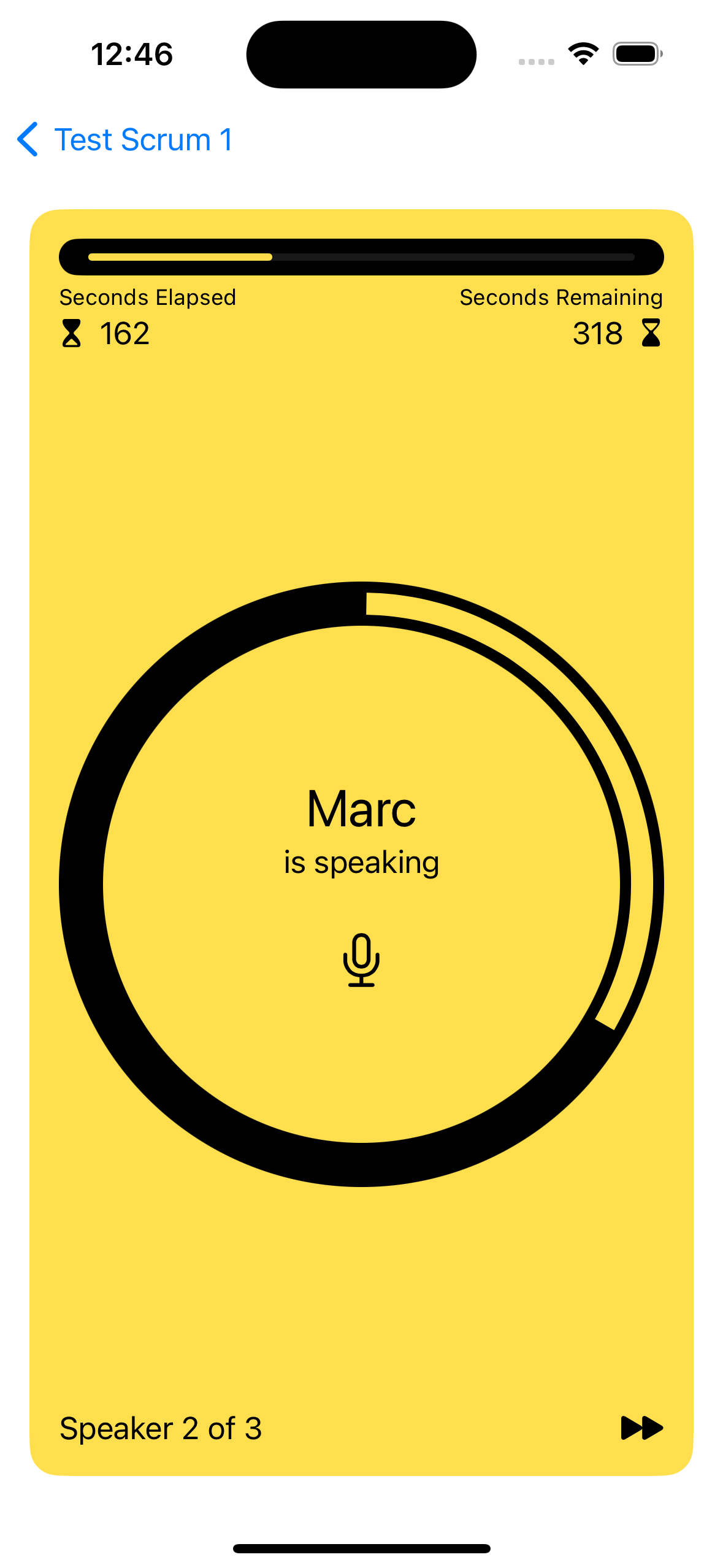
Screenshot of the iOS app's scrum list Screenshot of the iOS app's scrum detail Screenshot of the iOS app's meeting view

Play around with the app - this is what we’re going to bring to Android. First, however, we need to install Skip.

Skip is a tool for building fully native iOS and Android apps from a single Swift and SwiftUI codebase. It works by transpiling your Swift into Android’s Kotlin development language and adapting your SwiftUI to Android’s native Jetpack Compose UI framework.

Skip’s Android version of Scrumdinger won’t be pixel-identical to the iOS version, and it shouldn’t be. Rather, we believe in using the native UI framework and controls on each platform. This gives the best possible user experience, avoiding the uncanny-valley feel of non-native solutions.

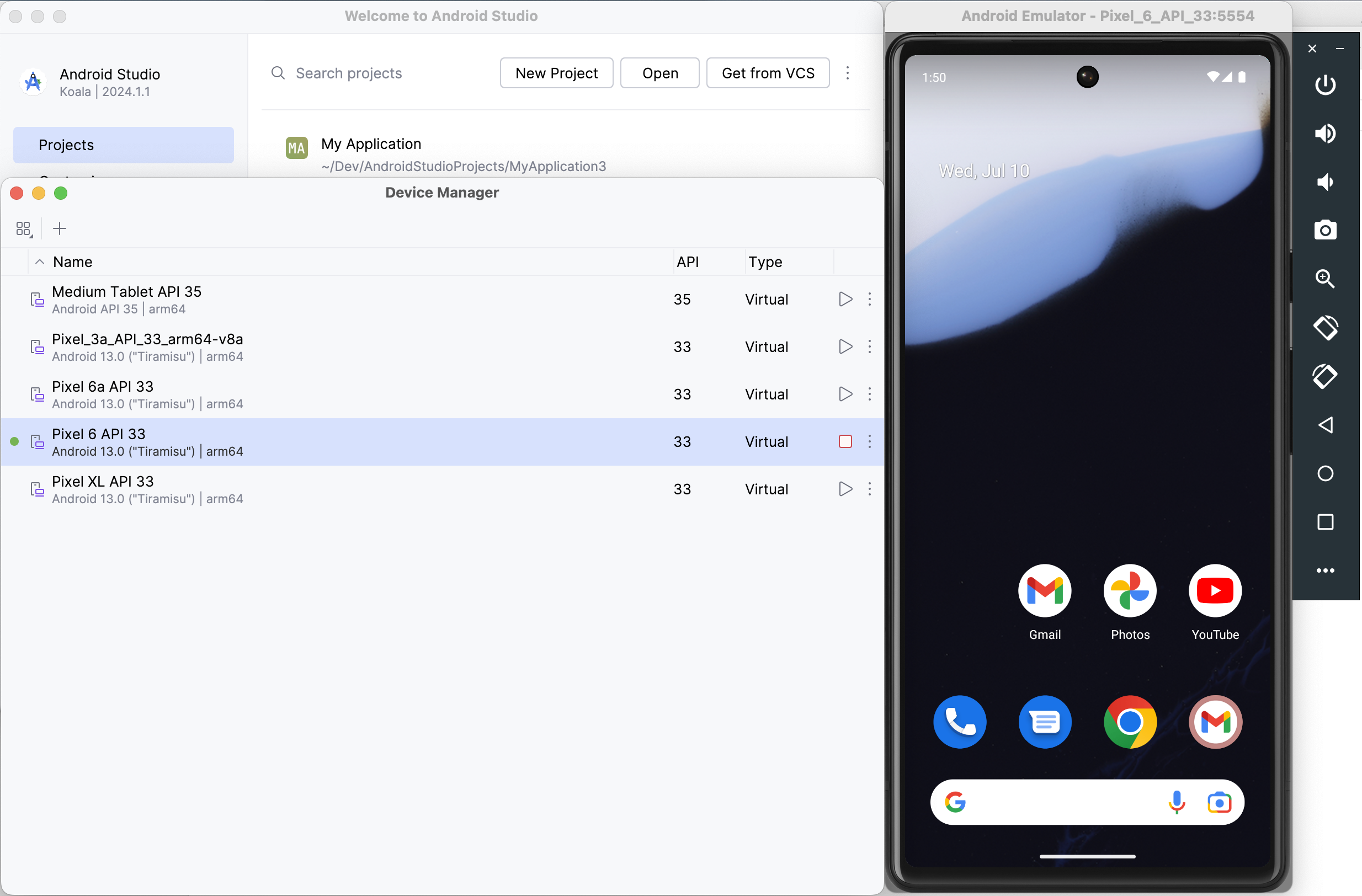
Follow the Getting Started guide to install Skip and your Android environment, including Android Studio. Next, launch Android Studio and open the Virtual Device Manager from the ellipsis menu of the Welcome dialog. From there, Create Device (e.g., “Pixel 6”) and then start the Emulator. Skip needs a connected Android device or Emulator to run the Android version of your app.

Screenshot of Android Studio Device Manager

Now we’re ready to turn Scrumdinger into a dual-platform Skip app.

It isn’t too hard to update an existing Swift Package Manager package to use Skip. Updating an existing app, however, is a different story. Building for Android requires a specific folder structure and xcodeproj configuration. We recommend creating a new Skip Xcode project, then importing the old project’s code and resources.

Enter the following command in Terminal to initialize Scrumskipper, your dual-platform version of the Scrumdinger app.

Terminal window
skip init --open-xcode --appid=com.xyz.Scrumskipper scrum-skipper Scrumskipper

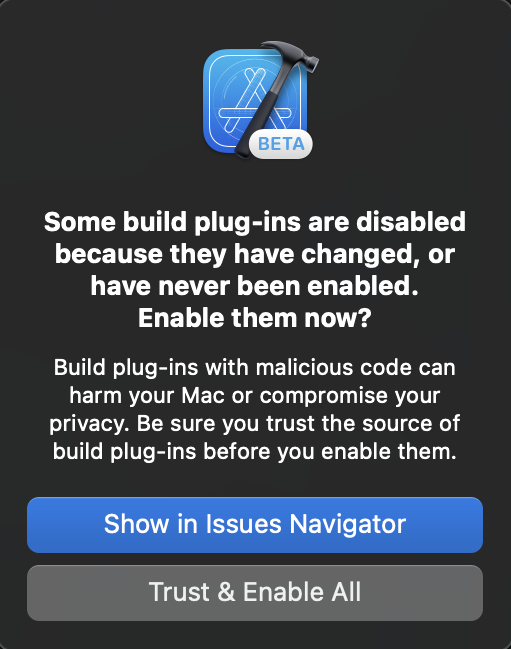
This will create a template SwiftUI app and open it in Xcode. Let’s run the template as-is to make sure it’s working: select your desired iOS Simulator in Xcode, and hit the Run button. If you just installed or updated Skip, you may have to trust the Skip plugin:

Xcode's Trust Plugin dialog

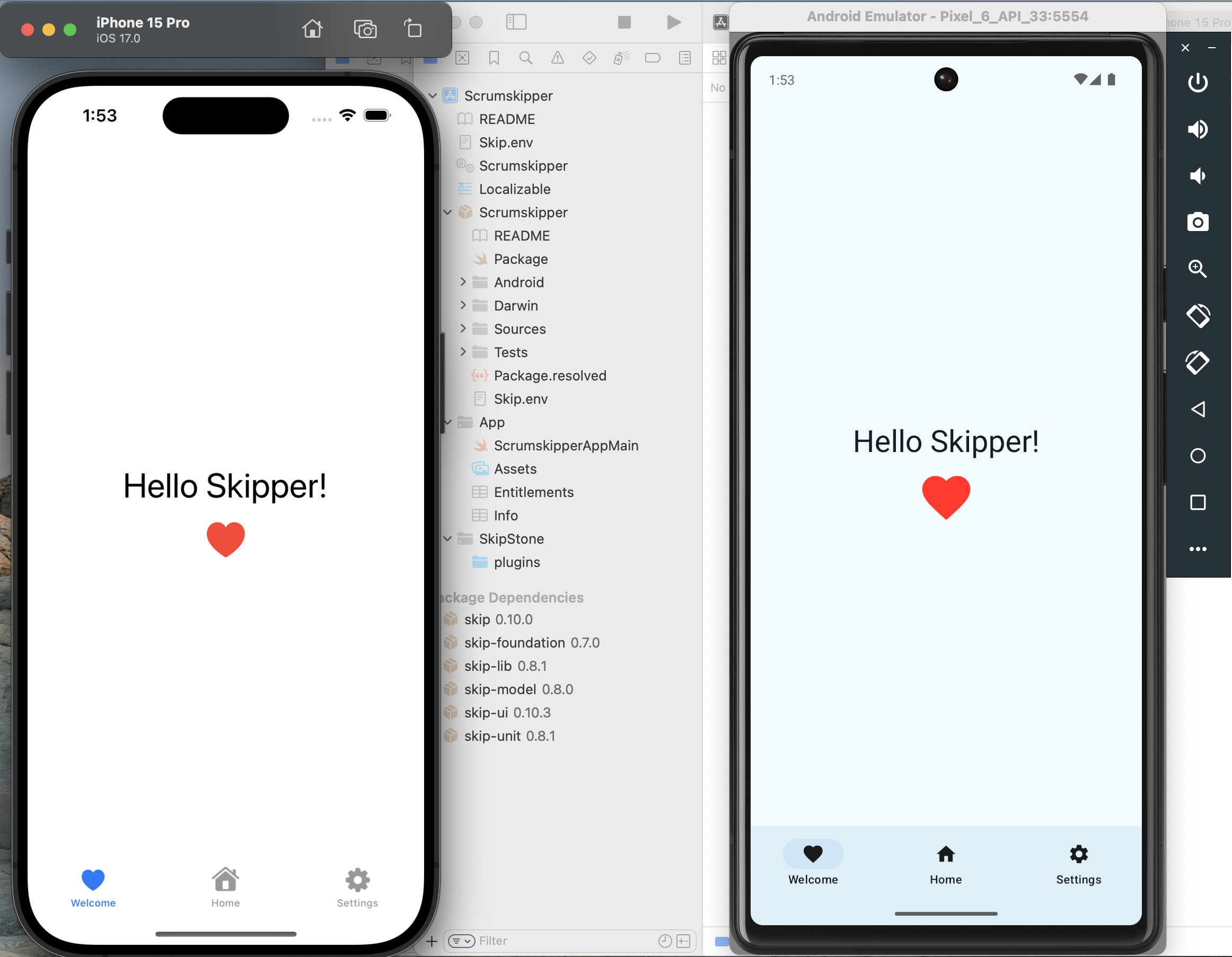
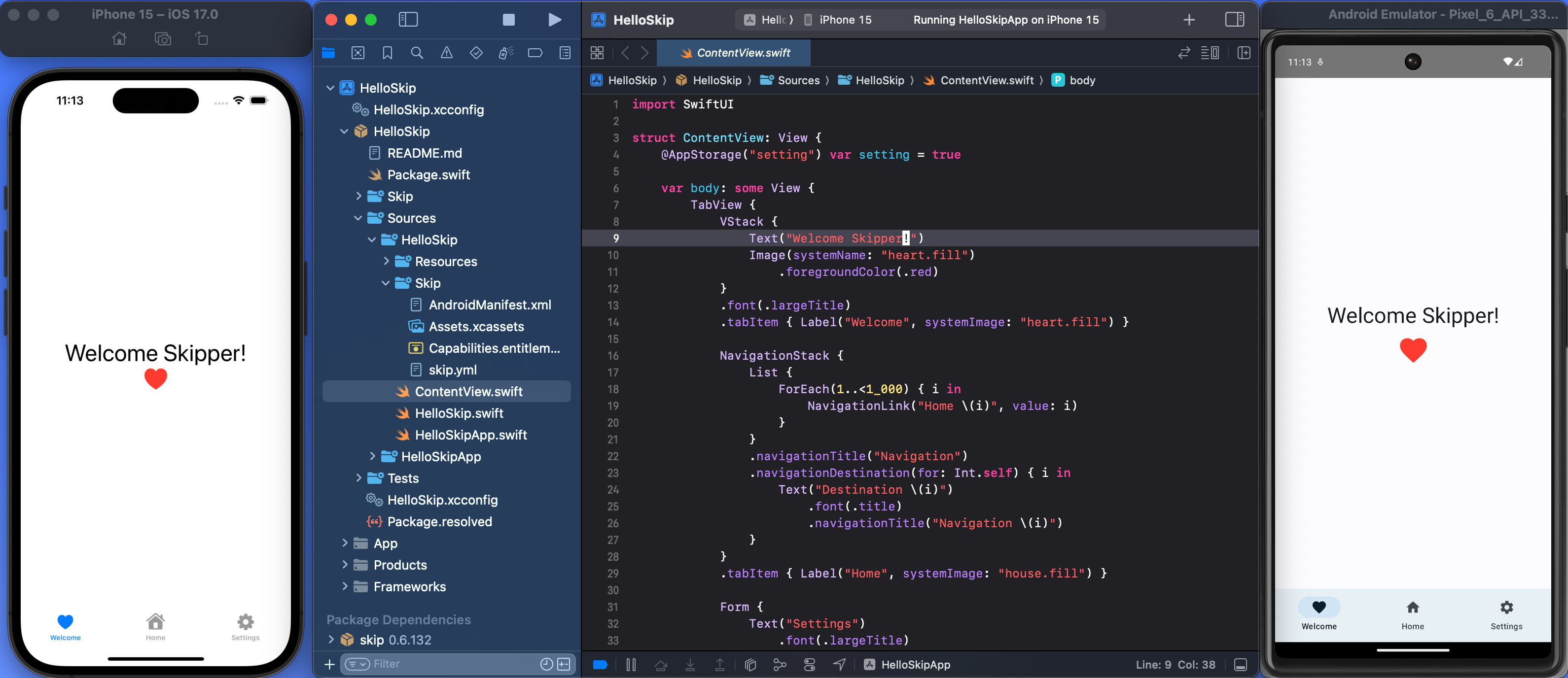
If all goes well, you should see something like the following:

Screenshot of template app running in iOS Simulator and Android Emulator

Great! Next, copy Scrumdinger’s source code to Scrumskipper:

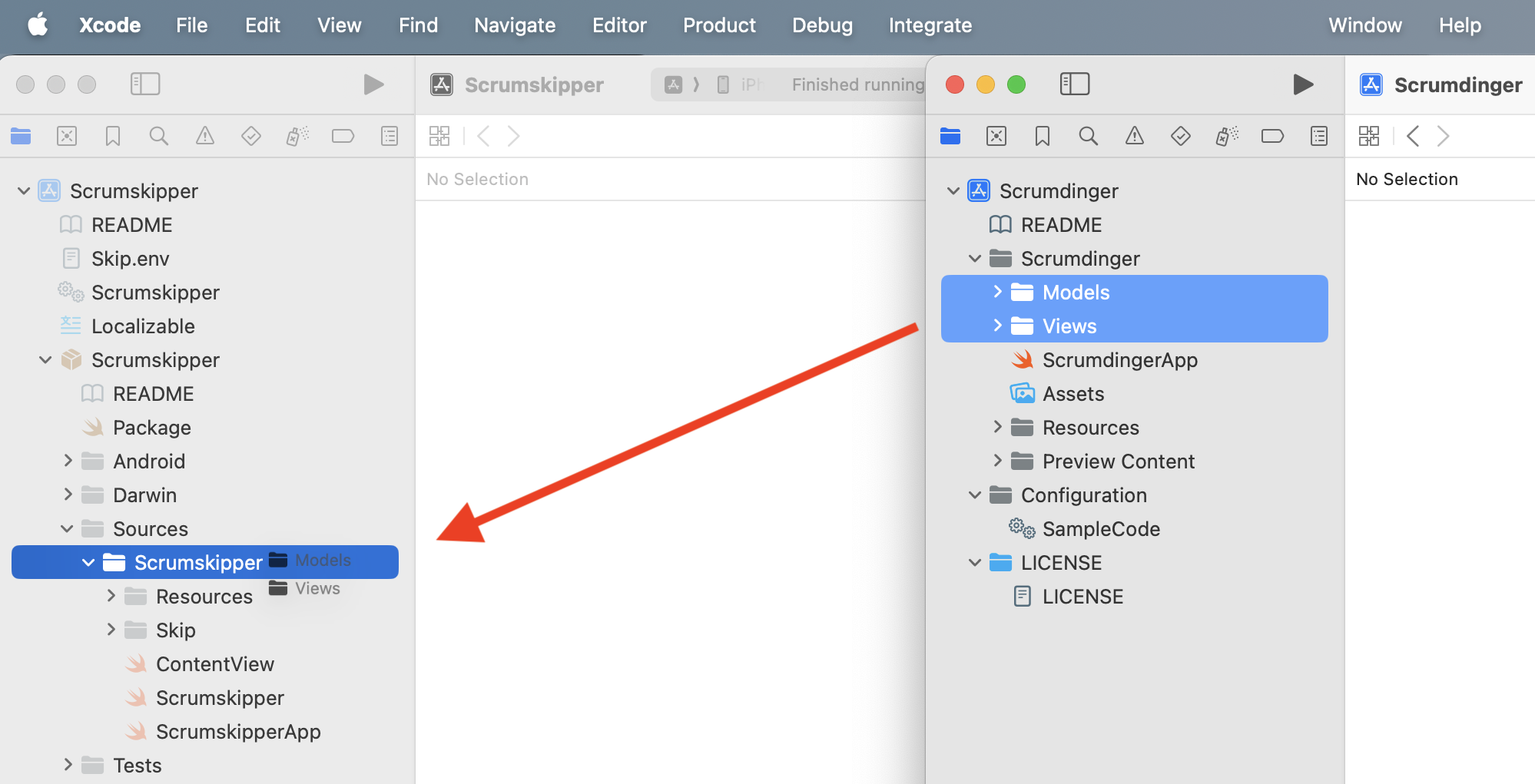
  1. Drag the Scrumdinger/Models and Scrumdinger/Views folders from Scrumdinger’s Xcode window into the Scrumskipper/Sources/Scrumskipper/ folder in Scrumskipper’s window.

    Copy source folders from Scrumdinger to Scrumskipper
  2. Replace Scrumskipper’s ContentView body with the content of Scrumdinger’s primary WindowGroup. Scrumskipper’s ContentView should now look like this:

import SwiftUI
public struct ContentView: View {
@StateObject private var store = ScrumStore()
@State private var errorWrapper: ErrorWrapper?
public init() {
}
public var body: some View {
ScrumsView(scrums: $store.scrums) {
Task {
do {
try await store.save(scrums: store.scrums)
} catch {
errorWrapper = ErrorWrapper(error: error,
guidance: "Try again later.")
}
}
}
.task {
do {
try await store.load()
} catch {
errorWrapper = ErrorWrapper(error: error,
guidance: "Scrumdinger will load sample data and continue.")
}
}
.sheet(item: $errorWrapper) {
store.scrums = DailyScrum.sampleData
} content: { wrapper in
ErrorView(errorWrapper: wrapper)
}
}
}
#Preview {
ContentView()
}

That’s it! You’ve now created Scrumskipper, a dual-platform app with all of Scrumdinger’s source code.

It’s the moment of truth: hit that Xcode Run button!

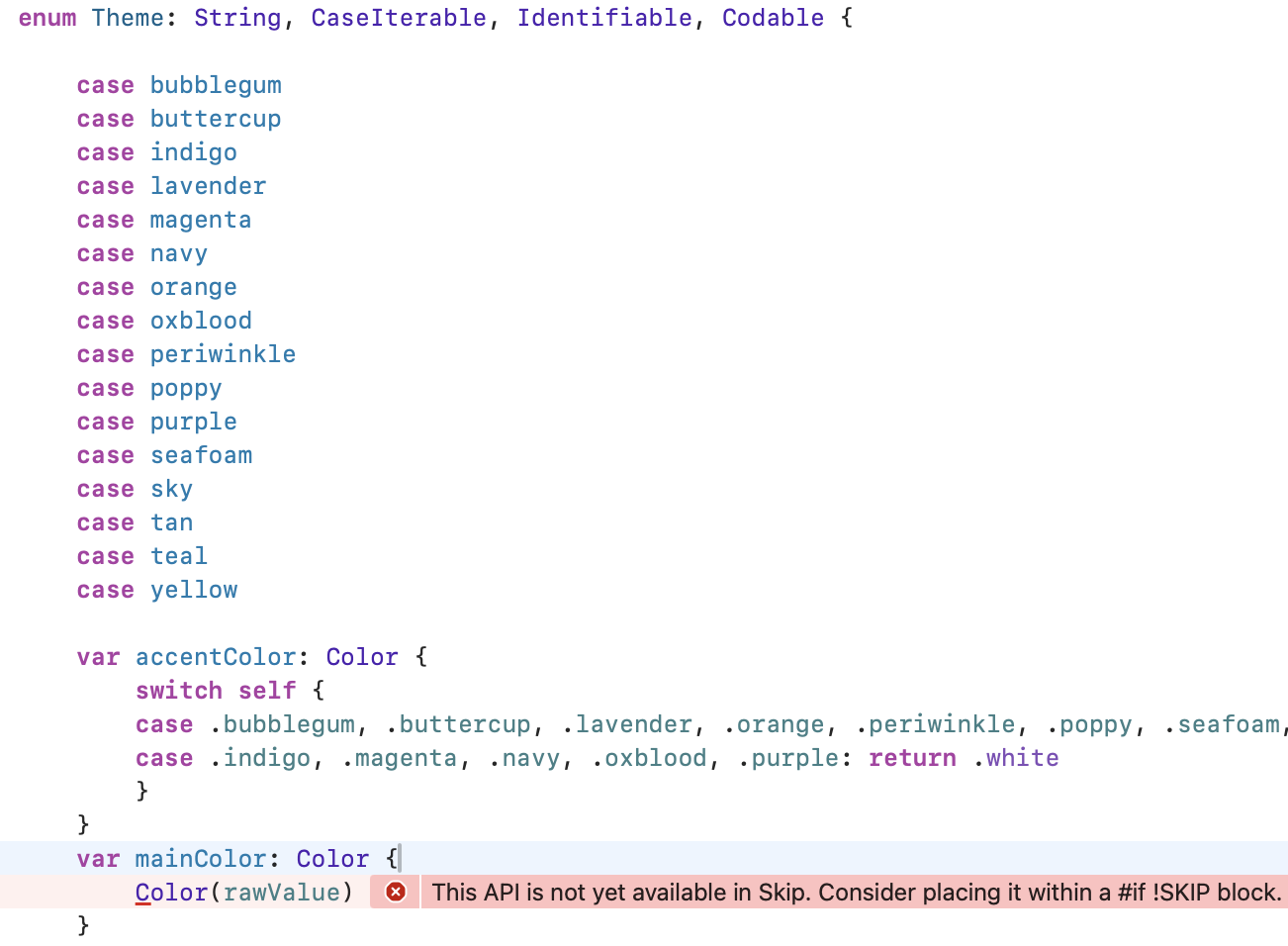
Almost immediately, you’ll get an API unavailable error like this one:

Xcode API unavailable error from Skip

This is our first hint that migrating an existing iOS codebase to Android is not trivial, even with Skip. Starting a new app with Skip can be a lot of fun, because it’s relatively easy to avoid problematic patterns and APIs, and you can tackle any issues one at a time as they appear. But when you take on an existing codebase, you get hit with everything at once. Even if Skip perfectly translates 95+% of your original Swift source and API calls - code that was certainly never intended to be cross-platform - that can leave dozens or even hundreds of errors to deal with!

It’s important to remember, though, that while fixing that remaining 5% can be a slog, it is still 20 times less work than a 100% Android rewrite! And once you’ve worked through the errors, you’ll have a wonderfully maintainable, unified Swift and SwiftUI codebase moving forward. So let’s roll up our sleeves and get started, beginning with the error above.

The pictured error message says that the Color(_ name:) constructor isn’t available in Skip. Each of Skip’s major frameworks includes a listing you can consult of the API that is supported on Android. These listings are constantly expanding as we port additional functionality. For example, here is the table of supported SwiftUI.

When an API is unsupported, that does not mean you can’t use it in your app! Skip never forces you to compromise your iOS app. Rather, it means that you have to find a solution for your Android version. That could mean contributing an implementation for the missing API, but more often you’ll just want to take a different Android code path. To keep your iOS code intact but create an alternate Android code path, use #if SKIP (or #if !SKIP) compiler directives. The Skip documentation covers compiler directives and other platform customization techniques in detail. Let’s update the problematic code in Theme.swift to use named colors on iOS, but fall back to a constant color on Android until we implement a solution:

Change:

var mainColor: Color {
Color(rawValue)
}

To:

var mainColor: Color {
#if !SKIP
Color(rawValue)
#else
// TODO
Color.yellow
#endif
}

This technique works for SwiftUI modifiers as well. For example, while Skip is able to translate many of SwiftUI’s accessibility modifiers for Android (in fact Skip’s native-UI approach excels in accessibility), it doesn’t have a translation for the .accessibilityElement(children:) modifier. So, update from this:

HStack {
Label("Length", systemImage: "clock")
Spacer()
Text("\(scrum.lengthInMinutes) minutes")
}
.accessibilityElement(children: .combine)

To this:

HStack {
Label("Length", systemImage: "clock")
Spacer()
Text("\(scrum.lengthInMinutes) minutes")
}
#if !SKIP
.accessibilityElement(children: .combine)
#endif

The iOS version of the app is unaffected, and the Android build can proceed without the unsupported modifier.

Getting Scrumskipper to successfully build as an iOS and Android app is a repetition of the process we began above:

  1. Hit the Run button.
  2. View the next batch of Xcode errors from the transpiler or the Kotlin compiler.
  3. Use compiler directives to exclude the source causing the error from the Android build.

If you see this process through as we did, you’ll end up using #if SKIP and #if !SKIP approximately 25 times in the ~1,500 lines of Scrumdinger’s Swift and SwiftUI source. In addition to the aforementioned Color(_ name:) and .accessibilityElement(children:) APIs, here is a full accounting of Scrumdinger code that causes errors:

  • The Speech and AVFoundation frameworks used in Scrumdinger are not supported. While Skip does have a minimal AVFoundation implementation for Android, it is not complete as of this writing. These are examples of cases where you would likely use Skip’s dependency support to integrate Android-specific libraries for the missing functionality.
  • Timer.tolerance is not supported.
  • .ultraThinMaterial is not supported.
  • ListFormatter is not supported. We replaced ListFormatter.localizedString(byJoining: attendees.map { $0.name }) with attendees.map { $0.name }.joined(separator: ", ").
  • SwiftUI’s ProgressViewStyle is not yet supported.
  • SwiftUI’s LabelStyle is not yet supported.
  • The Theme enum’s name property causes an error because all Kotlin enums inherit a built-in, non-overridable name property already. We changed the property to themeName.

You can view the final result in the source of our skipapp-scrumskipper sample app.

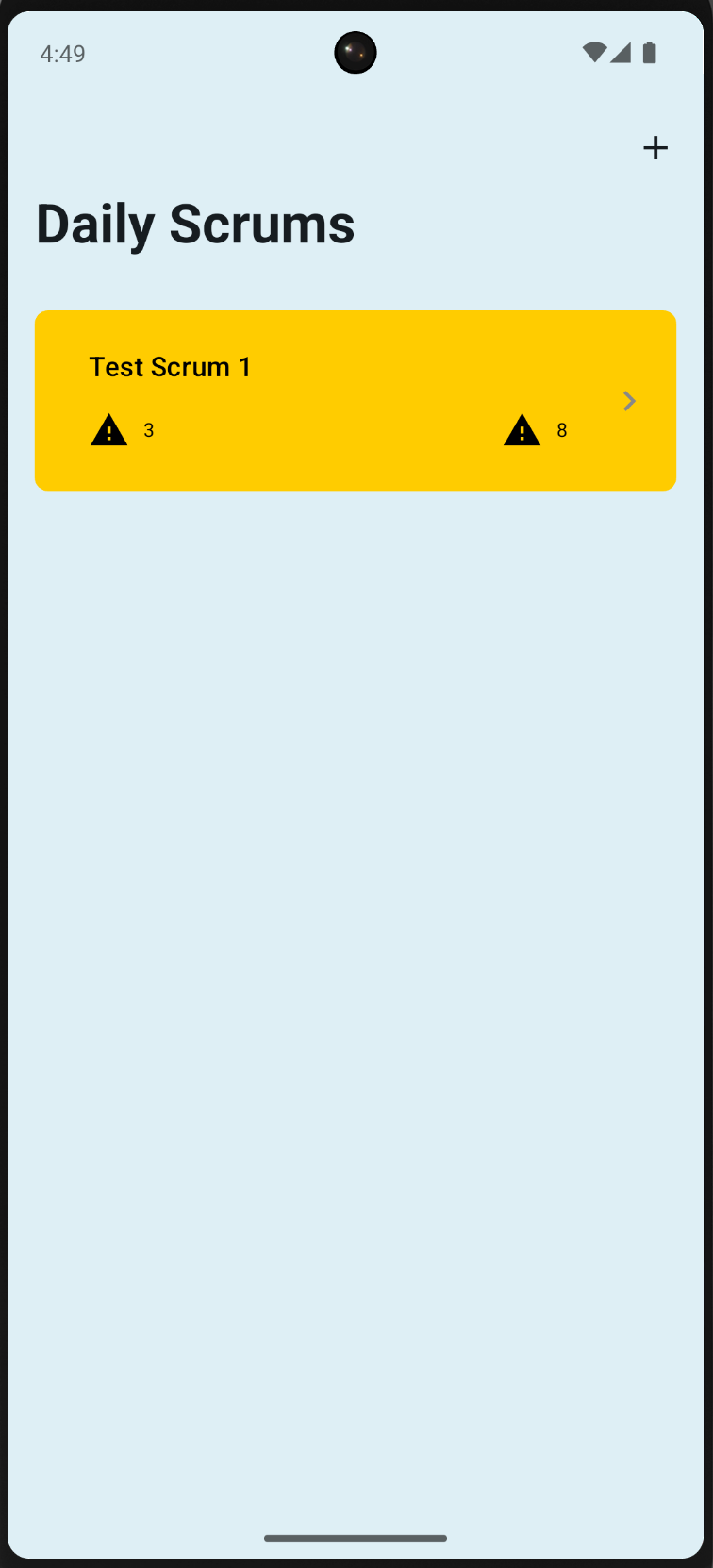
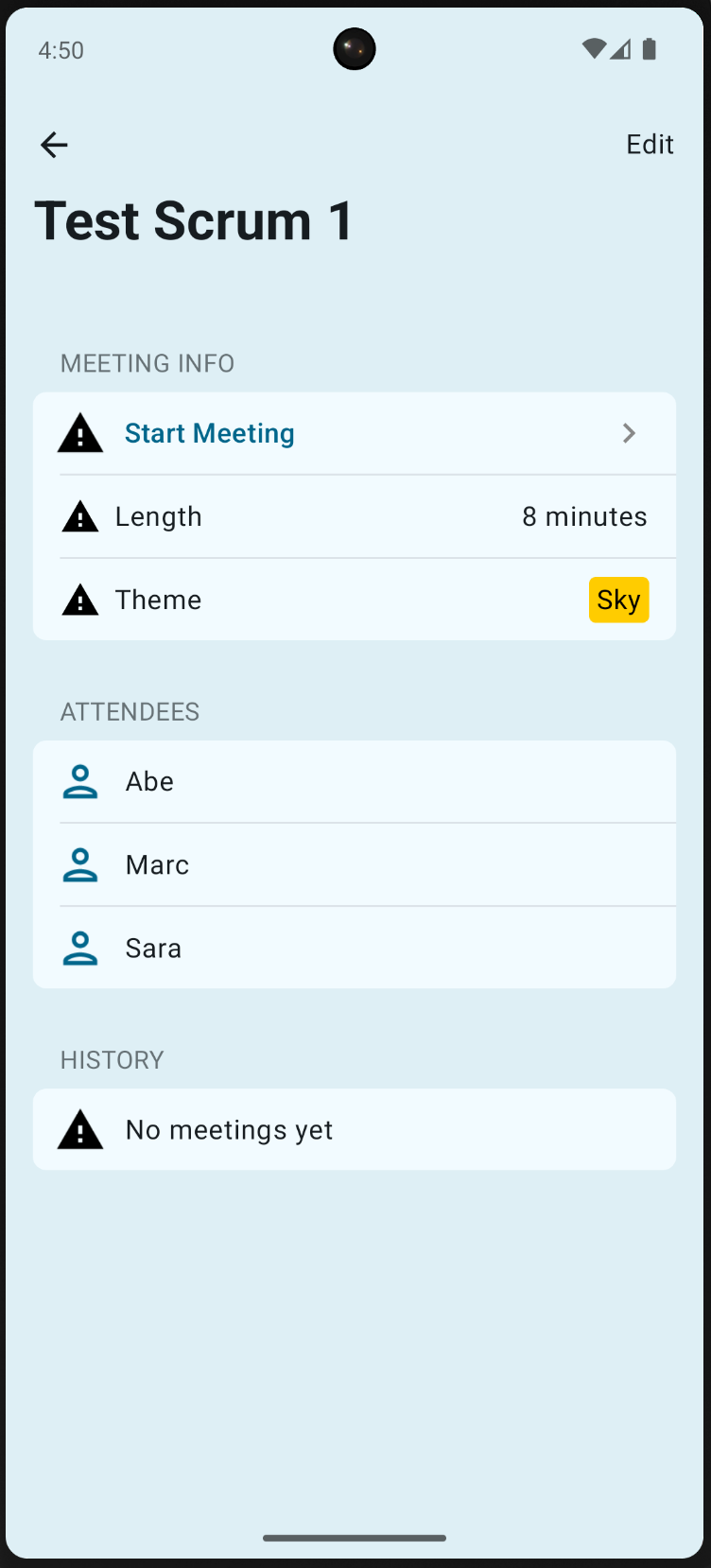
After using compiler directives to work around these errors, we have liftoff! Scrumskipper launches on both the iOS Simulator and Android Emulator. Clearly, however, it needs additional work.

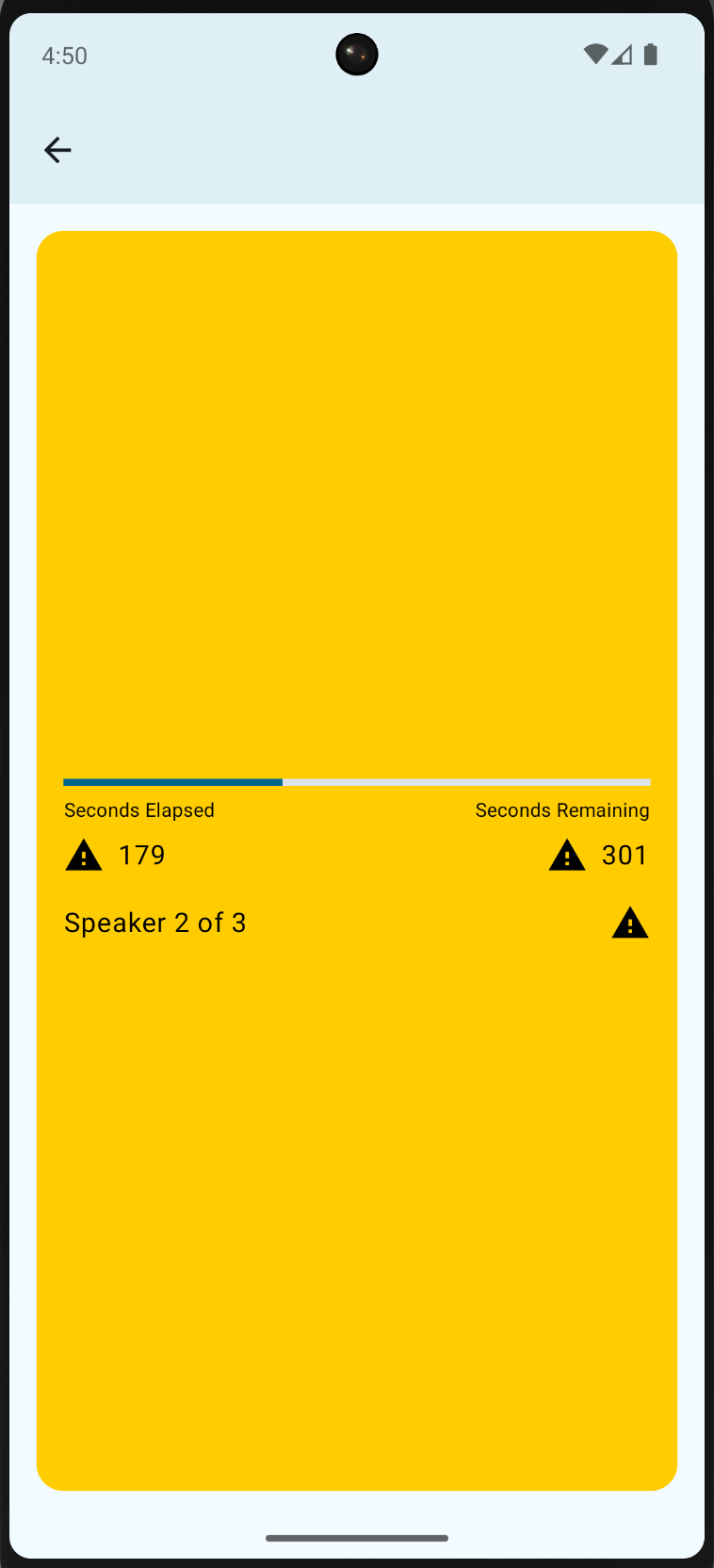
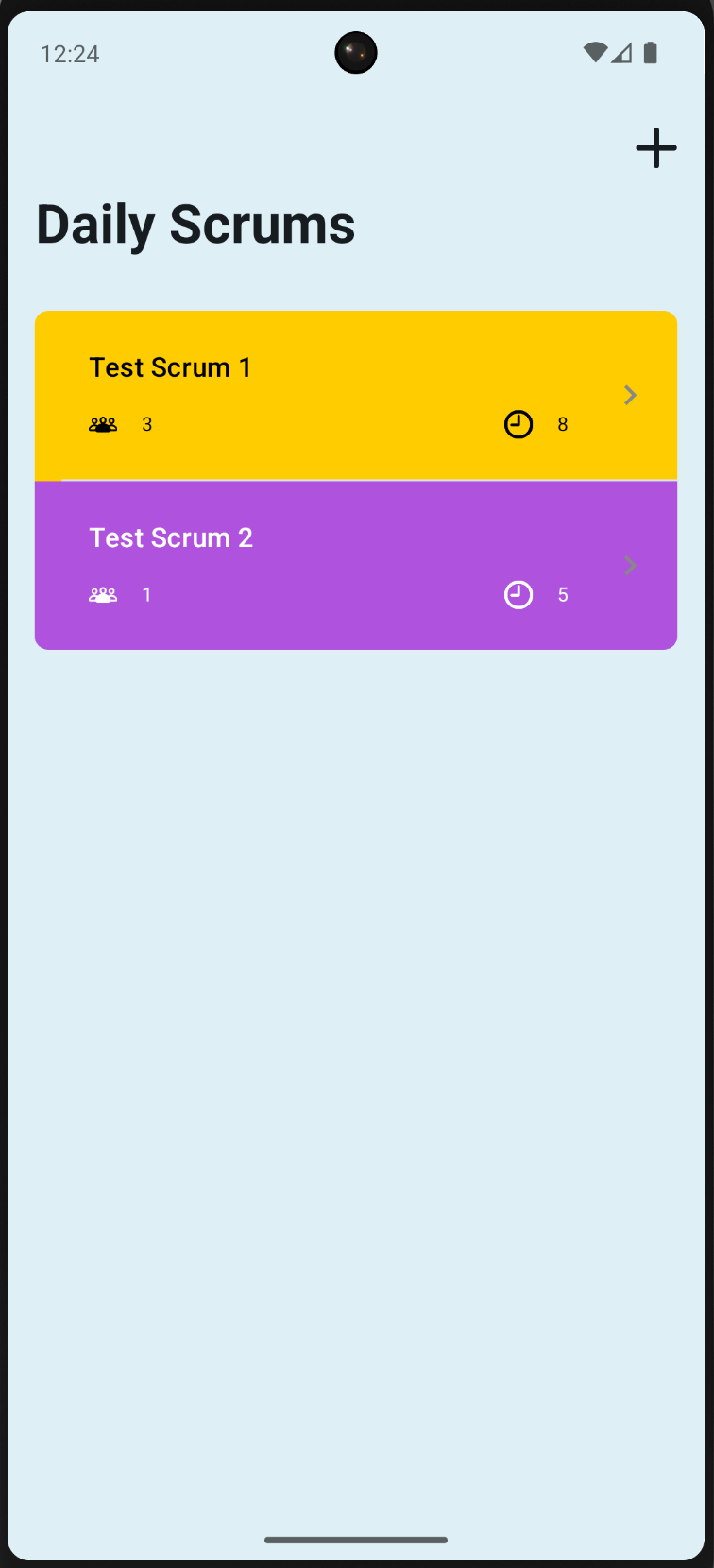
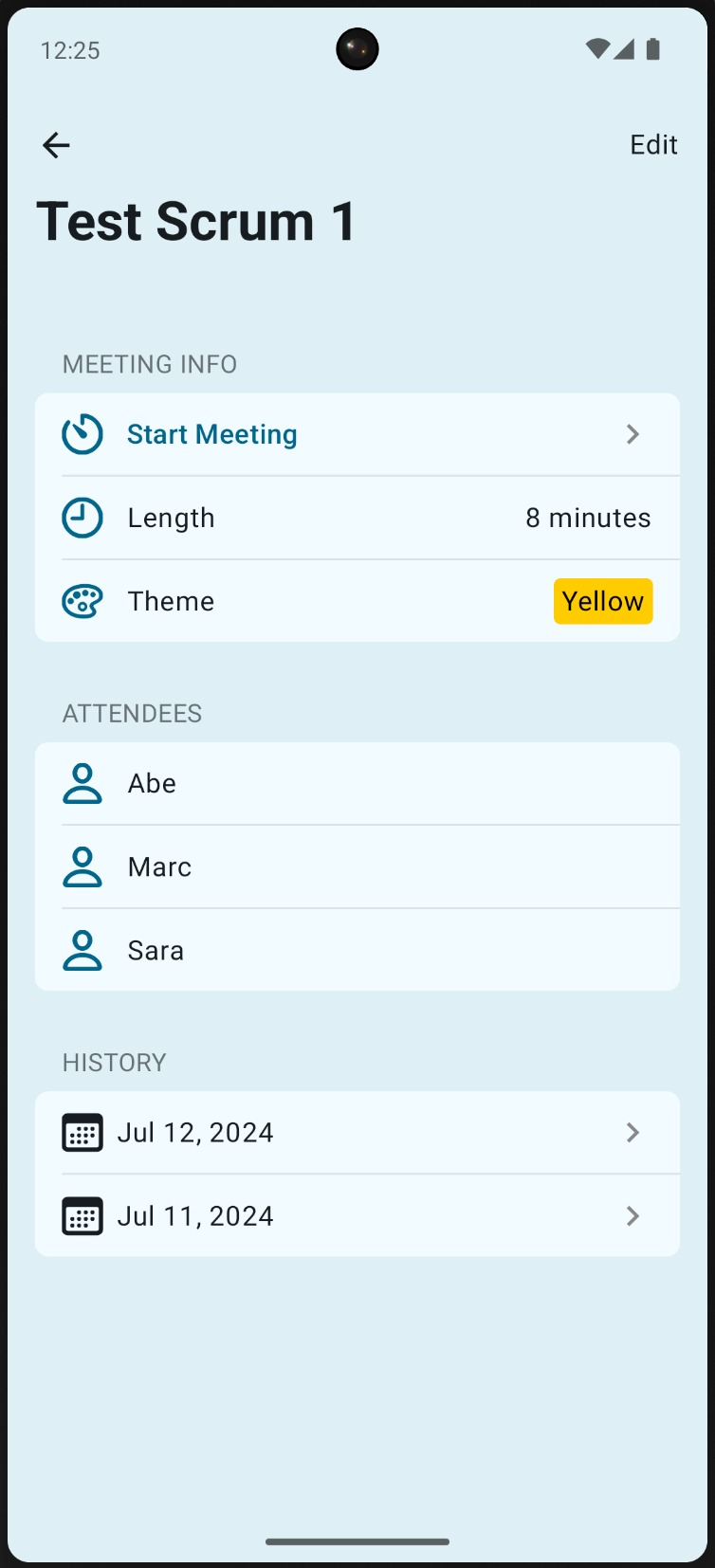
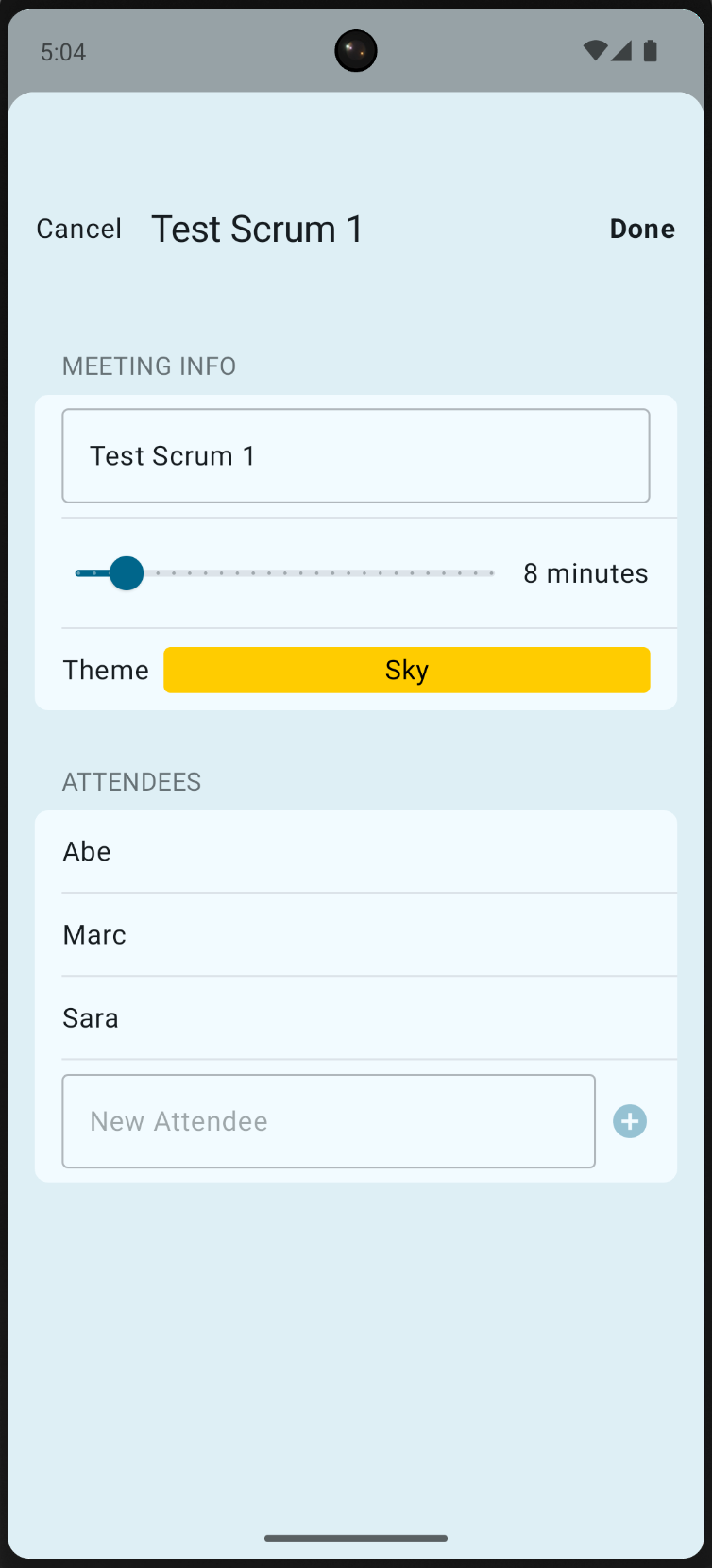
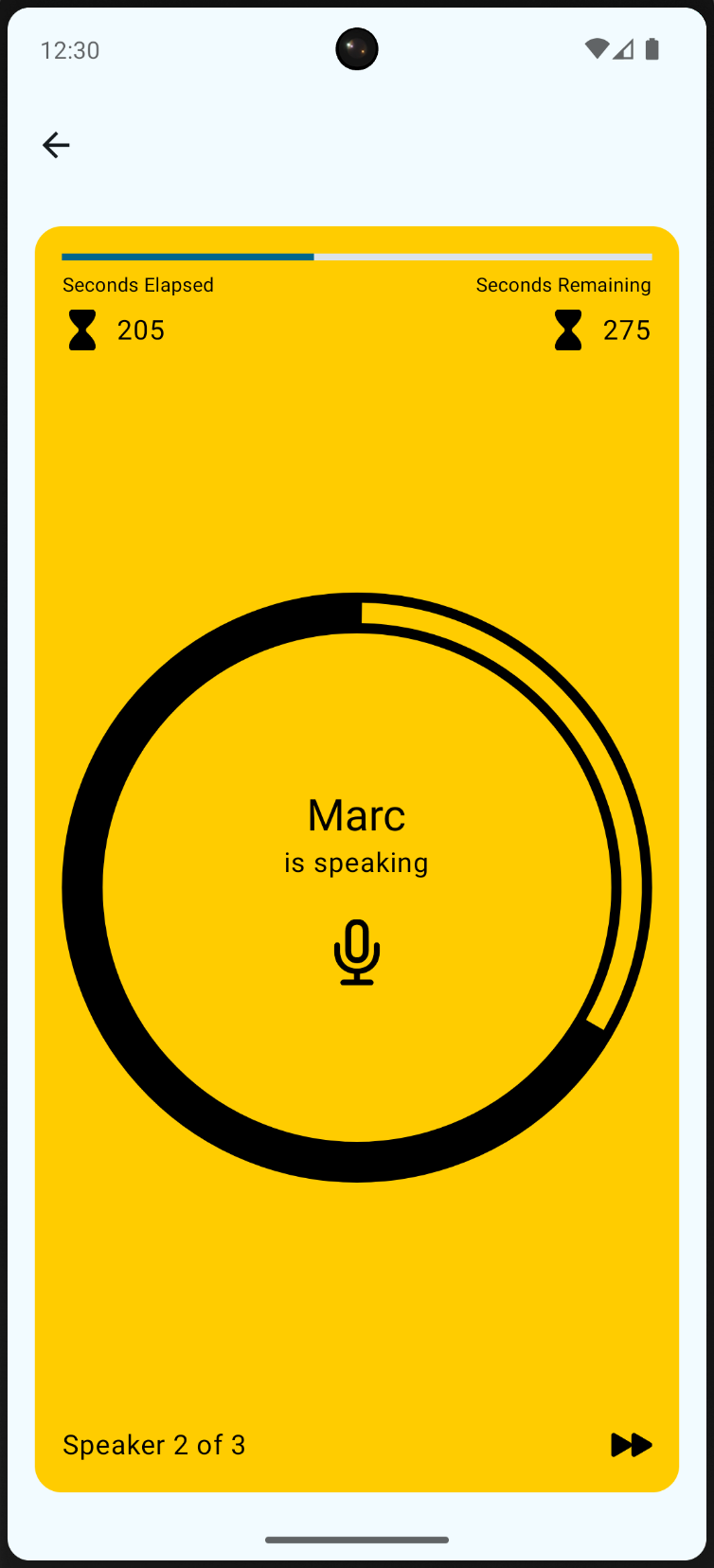
Screenshot of the Android app's scrum list Screenshot of the Android app's scrum detail Screenshot of the Android app's meeting view

As you explore the app, you’ll find many things that are missing or broken. Fortunately, it turns out that the problems are all easily fixed. View our sample app to see the completed code. We give a brief description of each issue below.

Copying over Scrumdinger’s source code wasn’t quite enough. We forgot to copy its ding.wav resource and more importantly, the Info.plist keys that give the app permission to use the microphone and speech recognition. Without these keys, the iOS app will crash when you attempt to start a meeting.

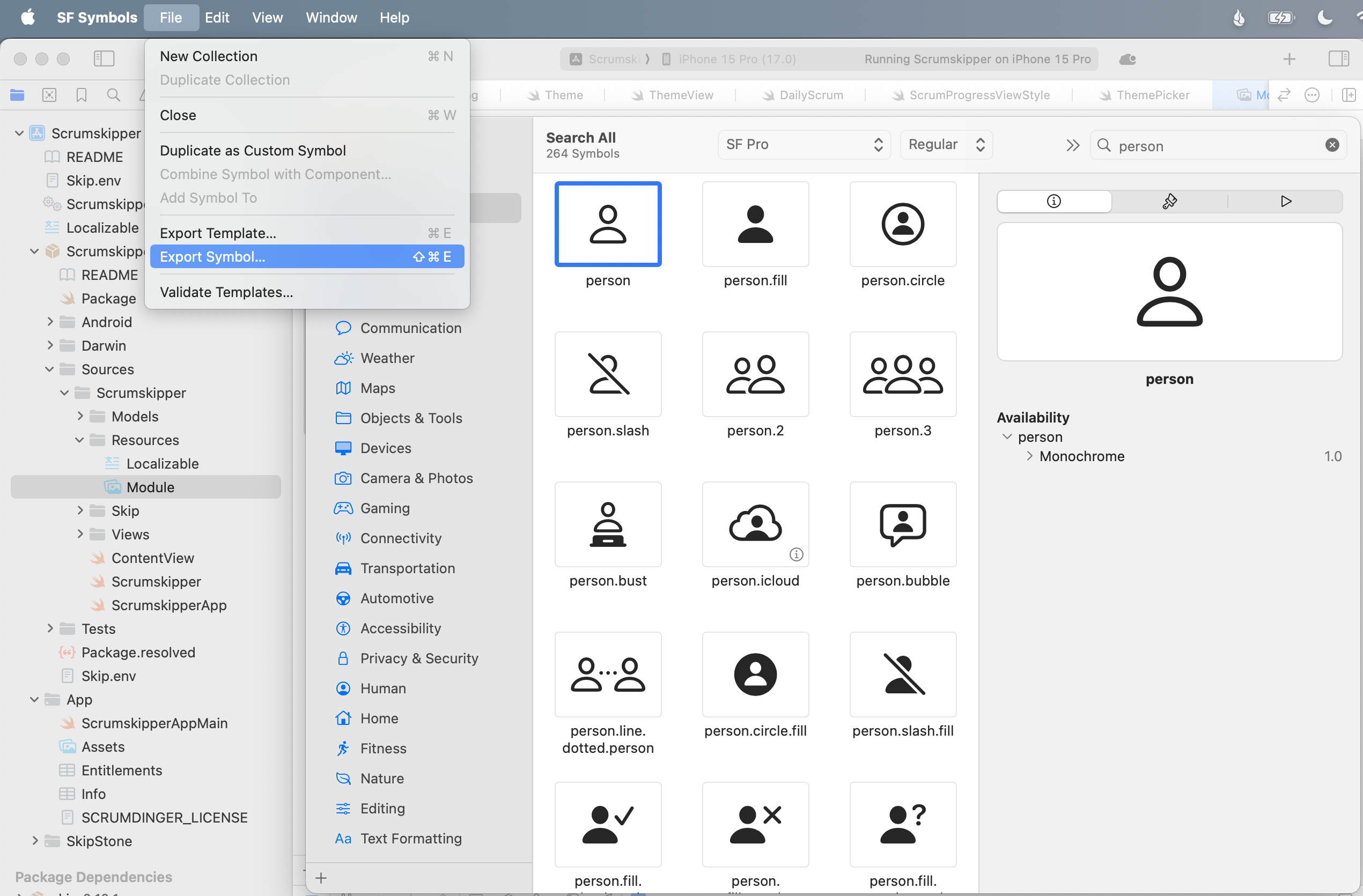
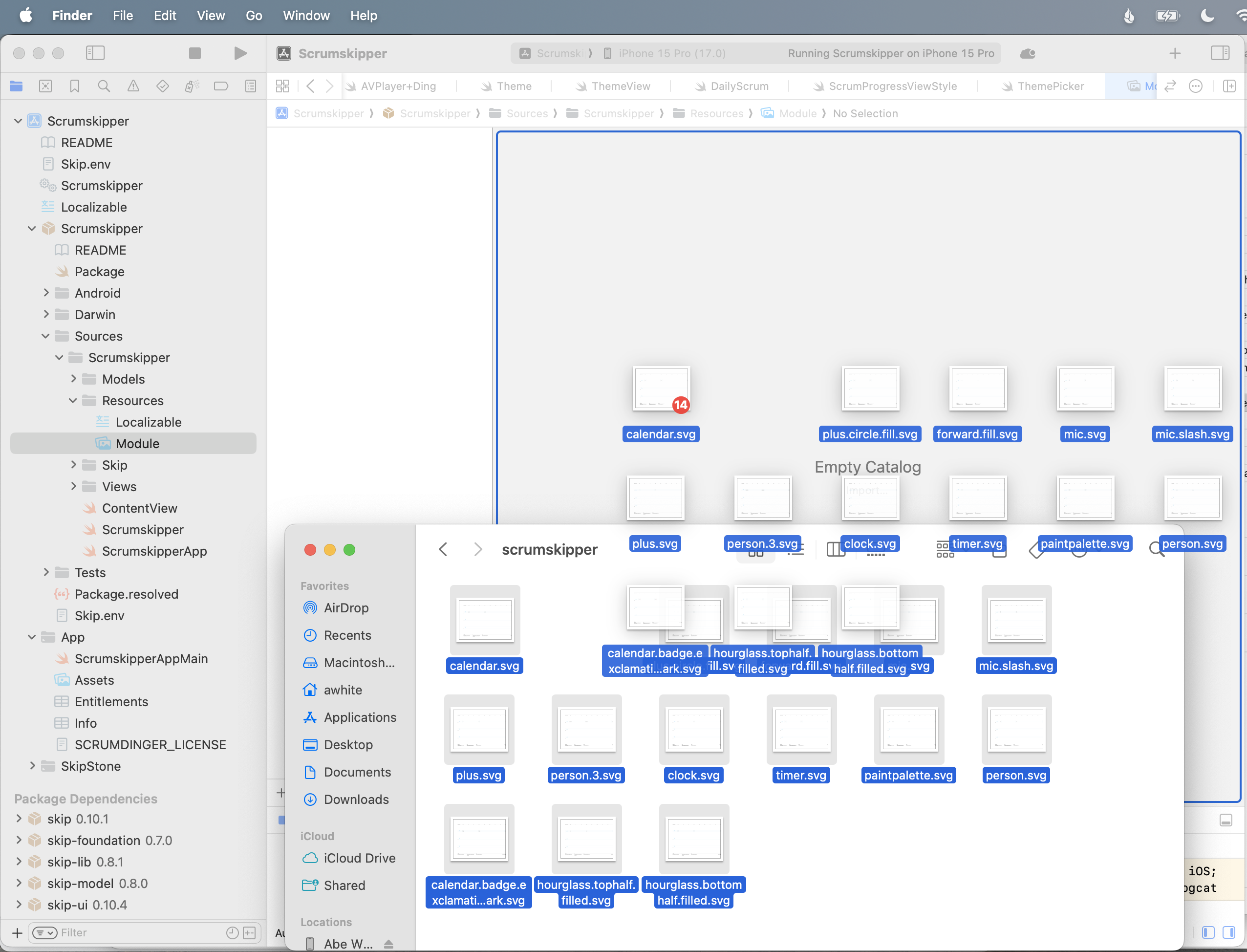
Scrumdinger uses SF Symbols for all of its in-app images. Android obviously doesn’t include these out of the box, but Skip allows you to easily add symbols to your app. Just place vector images with the desired symbol names in your Module asset catalog, as described here. For the purposes of this demo, we exported the symbols from Apple’s SF Symbols app.

Exporting a SF Symbol Copying SF Symbols to Scrumskipper

We made two additional tweaks to MeetingView. First, the custom MeetingTimerView was not rendering at all on Android. Layout issues like this are rare, but they do occur. Second, we didn’t want the Android navigation bar background to be visible. We added a couple of #if SKIP blocks to the view body to correct these issues:

var body: some View {
ZStack {
...
VStack {
MeetingHeaderView(...)
MeetingTimerView(...)
#if SKIP
.frame(maxWidth: .infinity, maxHeight: .infinity)
#endif
MeetingFooterView(...)
}
}
...
#if SKIP
.toolbarBackground(.hidden, for: .navigationBar)
#endif
}

Scrums were not being saved and restored in the Android version of the app. It turns out that Scrumdinger saved its state on transition to ScenePhase.inactive, but Android doesn’t use this phase! Android apps transition directly from active to background and back. The following simple change fixed the issue:

struct ScrumsView: View {
@Environment(\.scenePhase) private var scenePhase
...
var body: some View {
NavigationStack {
...
}
.onChange(of: scenePhase) { phase in
#if !SKIP
if phase == .inactive { saveAction() }
#else
if phase == .background { saveAction() }
#endif
}
}
}

Remember how we were going to circle back to the Theme enum’s named colors on Android? We decided to forgo the asset catalog colors altogether and just define each color programmatically with RGB values.

The completed native Android app actually looks a lot like its iOS counterpart:

Screenshot of the Android app's scrum list Screenshot of the Android app's scrum detail Screenshot of the Android app's edit view Screenshot of the Android app's meeting view

Take a moment to reflect on how amazing it is that Apple’s canonical SwiftUI iPhone sample now runs as a fully native Android app. Though Skip excels at new development and the process for bringing Scrumdinger’s existing code to Android wasn’t trivial, it was still an order of magnitude faster than a re-write and did not risk regressions to the iOS version. Moreover, future maintenance and improvements will be extremely efficient thanks to having a single shared Swift and SwiftUI codebase.

The Android version doesn’t yet have all the features of the iOS one, but additional Android functionality can be added over time. Skip never forces you to compromise your iOS app, provides a fast path to a native Android version using your existing code, and has excellent integration abilities to enhance and specialize your Android app when the effort warrants it.

Going the last mile with Skip and Fastlane

Getting your finished app into the hands of users can be a laborious process. The individual app stores – the Apple App Store the the Google Play Store, primarily – have their own cumbersome web-based processes for uploading the app binary, adding metadata and screenshots, and providing the necessarily content ratings and regulatory information required by various jurisdictions. And once you have gone through all the tedious manual steps needed to release the initial version of the app, each and every update will also need to follow many of those steps all over again.

Fortunately, this process has become so irksome, to so many developers, that a community tool called “Fastlane” was born. In the documentation, it describes itself as:

fastlane is the easiest way to automate beta deployments and releases for your iOS and Android apps. 🚀 It handles all tedious tasks, like generating screenshots, dealing with code signing, and releasing your application.

Fastlane is architected as a collection of plugins that handle all manner of app distribution tasks, like packaging, signing, and uploading. It is configured with a platform-specific hierarchy of local text and ruby configuration files, one for Android and another for iOS.

Skip 0.8.50 now has built-in support for creating a default fastlane configuration for each of your iOS and Android projects. When you create a new project with the command:

skip init --fastlane --appid=app.bundle.id package-name AppName

The Darwin/ and Android/ folders will each contain a template for the fastlane project, which holds the metadata files that can be edited to fill in information like the app’s title, description, content ratings, and screenshots.

Once you fill in the generated text files with your app’s specific details, such as the title, description, and keywords, you can then use the fastlane release command in each of the folders to create new releases of your app and submit them either to the store’s beta test service, or to be reviewed for worldwide release.

Being able to quickly build and upload a new release with a single command is a great help in maintaining a rapid release cadence. It enables “continuous delivery”, defined by Wikipedia as:

Continuous delivery (CD) is a software engineering approach in which teams produce software in short cycles, ensuring that the software can be reliably released at any time. It aims at building, testing, and releasing software with greater speed and frequency. The approach helps reduce the cost, time, and risk of delivering changes by allowing for more incremental updates to applications in production. A straightforward and repeatable deployment process is important for continuous delivery.

We are using this process ourselves with those Skip apps that we are delivering to the app stores, like the Skip Showcase app that demonstrates the various SkipUI components (App Store link, Play Store link).

Being able to submit a new release to both the major app storefronts with a single command is a joy. It can be used to submit quick fixes, or as part of a continuous integration workflow triggered by tagging your source release. However you use it, Fastlane eliminates much of the repetition and tedium of release management.

For more information on Skip’s Fastlane integration, see the deployment documentation.

Announcing the Skip Technology Preview!

We’re thrilled to announce the tech preview of Skip: dual-platform app development in Swift.

Screenshot

You write a modern iPhone app, and Skip transpiles it into a native Android app in real time.

Skip is the only solution that enables the creation of genuinely native apps for both iOS and Android with one language, one team, and one codebase.

Check out the video tour and visit the FAQ and documentation to get started. Sign up at skip.dev to be notified about future updates.

Happy Skipping!