Skip to content

toolchain

3 posts with the tag “toolchain”

Swift Everywhere: Bringing Swift Packages to Android

Swift Android Logo {: style=“text-align: center; width: 200px; margin: auto;”}

  • Table of contents {:toc}

In recent weeks, the Skip team has submitted patches to numerous Swift projects to add Android support to their packages. We’ve been tracking the progress of Android build-ability on our swift-everywhere.org web site, which catalogs a list of many popular Swift packages and whether they compile for Android. At the time of writing, nearly two thousand Swift packages are building successfully for Android, with more being added every day.

This article will go over what our experience porting Swift packages has taught us, and how you can apply this knowledge to turn your parochial Apple-only Swift package into a universal multi-platform package that can build for not just iOS and macOS, but also for Android.

What sorts of Swift packages are good candidates for Android? The best litmus test is whether the package offers general-purpose functionality, as opposed to having an integral dependency on iOS-specific frameworks. Some examples of good candidates are:

  • Business logic
  • Algorithms and generic data structures
  • Networking utilities
  • Online web service and API clients
  • Data persistence
  • Parsers and formatters

On the flip side, examples of packages that would be challenging to bring to Android might be:

  • Custom UIKit components
  • HealthKit, CarPlay, Siri integration libraries
  • Other Apple-specific *Kit library integrations

Now, just because a Swift package is designed to work with an Apple-specific framework doesn’t mean that it is impossible to port to Android. It just means that it would be a signifiant amount of work and involve creating a bridge to the equivalent Kotlin or Java framework. This is by all means possible – and will be the topic of a future post – but the subject of this article is how to bring naturally portable Swift packages to Android.

Say you have a conventional Swift package that contains a Package.swift file at the root and has the usual Sources/ and (hopefully) Tests/ folders that contain the individual targets and source files.

Does running swift build and swift test in the package directory work from the Terminal? If so, then you already have a cross-platform package that works on multiple platforms: iOS and macOS! That, by itself, is a good sign that your package might be suitable for Android. Many frameworks that are available on iOS are not present on macOS, so either your package doesn’t use too many iOS frameworks, or it is smart enough to only reference them conditionally (more on that below). But how do we build and test for Android?

First, install Skip and the native Android SDK by following the instructions in our documentation. Then try to build your Swift package with the Android toolchain. The very abbreviated quick start looks like:

$ brew install skiptools/skip/skip
skip was successfully installed!
$ skip android sdk install
[✓] Install Swift Android SDK (2.4s)
$ cd MySwiftPackage/
$ skip android build
Building for debugging...
[0/2] Write sources
[4/4] Emitting module DemoPackage
Build complete! (1.85s)

If you see “Build complete!” then congratulations! Your package already builds for Android, and you can move on to the Testing section. But if you encounter errors from the build command, you will need to port your package over to Android. Read on…

Wikipedia defines porting as the “process of adapting software for the purpose of achieving some form of execution in a computing environment that is different from the one that a given program (meant for such execution) was originally designed for”.

In other words, you made your Swift package with iOS in mind, and now you want it to work on Android. The following sections will go over some of the most common issues you may hit when first trying to build your package on this new platform.

Conditionally Importing and Using Platform-Specific Modules

Section titled “Conditionally Importing and Using Platform-Specific Modules”

Suppose your Swift package defines an Event protocol with a simple default implementation:

protocol Event {
var dateRange: Range<Date> { get }
var isConfirmed: Bool { get }
}
struct SimpleEvent : Hashable, Codable {
let start, end: Date
let confirmed
}
extension SimpleEvent : Event {
var dateRange: Range<Date> { self.start..<self.end }
var isConfirmed: Bool { confirmed }
}

Your package also includes an extension to implement Event using the iOS EventKit framework, like so:

import EventKit
extension EKEvent : Event {
var dateRange: Range<Date> { self.startDate..<self.endDate }
var isConfirmed: Bool { self.status == .confirmed }
}

EventKit is an Apple-only framework, so when you try to build the package for Android, you will hit an error:

$ skip android build
7 | import EventKit
| `- error: no such module 'EventKit'

The solution to this is simple: wrap any code that references the missing module in #if canImport(EventKit), which conditionally compiles the code only when the specified module is available:

protocol Event {
var dateRange: Range<Date> { get }
var isConfirmed: Bool { get }
}
struct SimpleEvent : Hashable, Codable {
let start, end: Date
let confirmed
}
extension SimpleEvent : Event {
var dateRange: Range<Date> { self.start..<self.end }
var isConfirmed: Bool { confirmed }
}
#if canImport(EventKit)
import EventKit
extension EKEvent : Event {
var dateRange: Range<Date> { self.startDate..<self.endDate }
var isConfirmed: Bool { self.status == .confirmed }
}
#endif

Now you will have all the general functionality of the package available to Android, which you can adapt for any Android-specific data structures you may create in the future.

Consider the following simple utility that fetches a URL and decodes it into an Item struct:

import Foundation
struct Item: Decodable {
let id: Int
let name: String
}
func fetch(_ url: URL) async throws -> Item {
let (data, response) = try await URLSession.shared.data(from: url)
return try JSONDecoder().decode(Item.self, from: data)
}

You may be surprised to see this fail to compile for Android:

$ skip android build
Building for debugging...
Fetcher.swift:9:49: error: type 'URLSession' (aka 'AnyObject') has no member 'shared'
7 |
8 | func fetch(_ url: URL) async throws -> Item {
9 | let (data, response) = try await URLSession.shared.data(from: url)
| `- error: type 'URLSession' (aka 'AnyObject') has no member 'shared'
10 | return try JSONDecoder().decode(Item.self, from: data)
11 | }

This somewhat confusing error message just means that it can’t find the URLSession type, because it isn’t present in the Foundation module on Android.

On Darwin platforms (macOS, iOS, and other Apple operating systems), the Foundation module is an umbrella for a wide variety of functionality. But on other platforms, such as Android and Linux, Foundation is broken up into multiple separate sub-components:

  • FoundationEssentials: All the basic Foundation types: Date, Calendar, URL, IndexSet, etc.
  • FoundationInternationalization: DateFormatter, NumberFormatter, and other localization utilities
  • FoundationNetworking: URLSession, URLCache, and other networking utilities
  • FoundationXML: XMLParser

The solution to this is simple: add a conditional import of FoundationNetworking to any file that uses any networking functionality, like so:

import Foundation
#if canImport(FoundationNetworking)
import FoundationNetworking
#endif
struct Item: Decodable {
let id: Int
let name: String
}
func fetch(_ url: URL) async throws -> Item {
let (data, response) = try await URLSession.shared.data(from: url)
return try JSONDecoder().decode(Item.self, from: data)
}

This will include the required FoundationNetworking module for platforms like Android and Linux that need it, but quietly ignore it on Darwin platforms like iOS and macOS where the networking types are included with the monolithic Foundation framework.

Swift has excellent integration with C, and many useful functions come in from the system’s C library, which is called Darwin on macOS and iOS. Take the simple example of calculating the hypotenuse of a triangle, which uses some math functions brought in from the standard C library:

import Darwin
func hypotenuse(a: Double, b: Double) -> Double {
return sqrt(pow(a, 2) + pow(b, 2))
}

If you try to build this for Android, you will hit the error:

1 | import Darwin
| `- error: no such module 'Darwin'

This is because the Darwin module doesn’t exist for Android. It is instead simply called Android. Again, we solve this with our handy conditional canImport:

#if canImport(Darwin)
import Darwin
#elseif canImport(Android)
import Android
#else
#error("Unknown platform")
#endif
func hypotenuse(a: Double, b: Double) -> Double {
return sqrt(pow(a, 2) + pow(b, 2))
}

In this case, we import either Darwin on iOS and macOS, or Android on Android. Both of these will provide access to the system’s standard C library.

Simple C functions (like pow and sqrt) will generally be surfaced in exactly the same way on Darwin and Android platforms. But the definition of some functions and data structures in the Android C library can sometimes differ in subtle ways. For example, the following code uses the FILE type and fopen and fwrite C functions on Darwin platforms:

import Darwin
let fd: UnsafeMutablePointer<FILE> = fopen("file.txt", "w")
var buffer: [UInt8] = [1, 2, 3]
let count: Int = buffer.withUnsafeBufferPointer { ptr in
fwrite(ptr.baseAddress, MemoryLayout<UInt8>.stride, ptr.count, fd)
}

This will fail to build for Android:

$ skip android build
FileWrite.swift:15:30: error: cannot find type 'FILE' in scope
13 | #endif
14 |
15 | let fd: UnsafeMutablePointer<FILE> = fopen("file.txt", "w")
| `- error: cannot find type 'FILE' in scope
16 | var buffer: [UInt8] = [1, 2, 3]
17 | let count: Int = buffer.withUnsafeBufferPointer { ptr in
FileWrite.swift:18:16: error: value of optional type 'UnsafePointer<UInt8>?' must be unwrapped to a value of type 'UnsafePointer<UInt8>'
16 | var buffer: [UInt8] = [1, 2, 3]
17 | let count: Int = buffer.withUnsafeBufferPointer { ptr in
18 | fwrite(ptr.baseAddress, MemoryLayout<UInt8>.stride, ptr.count, fd)
| |- error: value of optional type 'UnsafePointer<UInt8>?' must be unwrapped to a value of type 'UnsafePointer<UInt8>'
| |- note: coalesce using '??' to provide a default when the optional value contains 'nil'
| `- note: force-unwrap using '!' to abort execution if the optional value contains 'nil'
19 | }
20 |

There are two separate issue here:

  • FILE doesn’t exist on Android, so UnsafeMutablePointer<FILE> must be replaced with OpaquePointer
  • Functions like fwrite that take a file pointer will not accept an optional, and so must be force-unwrapped from their pointer’s rawValue

The following conditional typealias will handle the first issue, and simply force-unwrapping the pointer’s address (which should be valid on all platforms) addresses the second:

#if canImport(Darwin)
import Darwin
#elseif canImport(Android)
import Android
#else
#error("Unknown platform")
#endif
#if os(Android)
typealias Descriptor = OpaquePointer
#else
typealias Descriptor = UnsafeMutablePointer<FILE>
#endif
let fd: Descriptor = fopen("file.txt", "w")
var buffer: [UInt8] = [1, 2, 3]
let count: Int = buffer.withUnsafeBufferPointer { ptr in
fwrite(ptr.baseAddress!, MemoryLayout<UInt8>.stride, ptr.count, fd)
}

Unless you are developing very low-level code that interfaces with the platform’s C library, you will rarely encounter these sorts of issues. But when you do, it is good to know that the solutions tend the be fairly simple. The most difficult part is often just deciphering the compilation failure message.

So now your package builds for Android with the command: skip android build. Amazing!

But you are only halfway there: you need to make sure your code not only builds for Android, but that it actually works. Hopefully, your Swift package includes test cases in the Test/ folder, and running the tests locally on your macOS machine with swift test works. For example, with the swift-algorithms package:

$ swift test
Building for debugging...
[78/78] Linking swift-algorithmsPackageTests
Build complete! (12.67s)
Test Suite 'All tests' started at 2025-01-21 19:25:03.841.
Test Suite 'swift-algorithmsPackageTests.xctest' started at 2025-01-21 19:25:03.842.
Test Suite 'AdjacentPairsTests' started at 2025-01-21 19:25:03.842.
Test Case '-[SwiftAlgorithmsTests.AdjacentPairsTests testEmptySequence]' started.
Test Case '-[SwiftAlgorithmsTests.AdjacentPairsTests testEmptySequence]' passed (0.002 seconds).
Test Case '-[SwiftAlgorithmsTests.AdjacentPairsTests testIndexTraversals]' started.
Test Case '-[SwiftAlgorithmsTests.AdjacentPairsTests testIndexTraversals]' passed (0.002 seconds).
Test Suite 'All tests' passed at 2025-01-21 19:25:05.718.
Executed 212 tests, with 0 failures (0 unexpected) in 1.870 (1.876) seconds

In order to run your tests on Android, you will need to either plug in an Android device (with USB debugging enabled), or else configure and launch an Android emulator, either from the command line or Android Studio).

Once you have your Android development target setup, you can run your package’s test cases with the skip android test command, which will compile the test cases, bundle them up (along with any associated resources), copy them to the Android device or emulator, and then execute the test cases remotely.

For example, for the swift-algorithms package:

% skip android test
[0/1] Planning build
Building for debugging...
[83/84] Linking swift-algorithmsPackageTests.xctest
Build complete! (11.68s)
[✓] Check Swift Package (0.87s)
[✓] Connecting to Android (0.18s)
[✓] Copying test files (0.88s)
Test Suite 'All tests' started at 2025-01-21 21:02:09.086
Test Suite 'swift-algorithms-1C77777B-CEC3-4075-8853-E77CECFCF30B.xctest' started at 2025-01-21 21:02:09.105
Test Suite 'AdjacentPairsTests' started at 2025-01-21 21:02:09.105
Test Case 'AdjacentPairsTests.testEmptySequence' started at 2025-01-21 21:02:09.105
Test Case 'AdjacentPairsTests.testEmptySequence' passed (0.014 seconds)
Test Case 'AdjacentPairsTests.testIndexTraversals' started at 2025-01-21 21:02:09.120
Test Case 'AdjacentPairsTests.testIndexTraversals' passed (0.004 seconds)
Test Suite 'All tests' passed at 2025-01-21 21:02:21.697
Executed 212 tests, with 0 failures (0 unexpected) in 12.579 (12.579) seconds

If there are any test failures, this is where you will delve into the details of your test case, isolate the problem, and apply fixes. There are many reasons why tests may fail, such as assumptions about the filesystem layout. These will need to be examined and resolved on a case-by-case basis.

Once all your tests pass, you’ve successfully brought your Swift package to Android!

Once you have your package building and your tests passing, you will want to ensure that they continue to pass. Maintaining a package that supports multiple platforms can be more challenging than just a single platform, because often when a new feature is implemented or a bug is fixed, the change will only be tested on the platform the developer is currently working with. For example, if you are working on the iOS side of your application and make a bug fix in one of your packages, you may only test the changes on that one platform, but it may inadvertently break something on another platform.

This is where continuous integration (CI) can be useful. If you use GitHub as your package’s source code management system, you can utilize GitHub Actions to automatically build and test your package on multiple platforms whenever you push to the repository or, for example, whenever a pull request is created from a branch or fork.

In order to facilitate Android CI, we provide the swift-android-action, which enables you to build and test your package against Android in a single line of configuration.

The following example of a .github/workflows/ci.yml script will build and test your package on each of macOS, iOS, Linux, and Android whenever a commit is pushed or a PR is created:

name: swift package ci
on:
push:
branches:
- '*'
workflow_dispatch:
pull_request:
branches:
- '*'
jobs:
linux-android:
runs-on: ubuntu-latest
steps:
- uses: actions/checkout@v4
- name: "Test Swift Package on Linux"
run: swift test
- name: "Test Swift Package on Android"
uses: skiptools/swift-android-action@v2
macos-ios:
runs-on: macos-latest
steps:
- uses: actions/checkout@v4
- name: "Test Swift Package on macOS"
run: swift test
- name: "Test Swift Package on iOS"
run: xcodebuild test -sdk "iphonesimulator" -destination "platform=iOS Simulator,name=iPhone 15" -scheme "$(xcodebuild -list -json | jq -r '.workspace.schemes[-1]')"

You can see this workflow in play in many of the packages on GitHub that support Android, such as Skip’s own swift-sqlcipher package.

In this way, you can be assured that once you have done the hard work of getting your package working with Android, it continues to work on all your supported platforms.

Expanding your Swift packages to support platforms beyond iOS may at first seem daunting, but using the advice from this article, you can follow a few simple steps that will put you on the right track:

  1. Setup Skip and the Swift Android SDK
  2. Try to build your package with skip android build
  3. Identify build errors and resolve them with conditional imports and by accommodating platform differences
  4. Set up an Android emulator or device for testing
  5. Test your package with skip android test
  6. Identify test failures and resolve them on a case-by-case basis

This is the sequence we have used to add Android support to dozens of popular Swift packages, such as GraphQL, CryptoSwift, and PromiseKit. With nearly 2,000 Swift packages currently building for Android, we feel the platform has achieved enough critical mass to make Swift an attractive language for many parts of your apps on both major mobile platforms: iOS and Android. And if you have a popular GitHub package that builds for Android, expect it to show up at swift-everywhere.org in the near future!

To learn more about running Swift on Android and how it integrates with Skip’s tools for creating dual-platform mobile apps, please see our ongoing blog series on the topic:

Native Swift on Android, Part 3: Sharing a Swift Model Layer

Native Swift on Android, Part 3: Sharing a Swift Model Layer

This is the third installment in our series exploring native Swift on Android. In Part 1 we discuss bringing the Swift compiler and toolchain to Android. Part 2 introduces Skip’s tooling and technology for Swift Android app development and leads you through the creation of your first cross-platform Swift app.

The app we create in Part 2 uses a compiled Swift model layer and a shared SwiftUI interface, which Skip transpiles to Jetpack Compose on Android. The following diagram illustrates this dual-platform, single-codebase architecture:

Skip Native Diagram {: .diagram-vector }

In this article, by contrast, we create separate iOS and Android apps. The iOS app and shared model layer are written in Swift and SwiftUI using Xcode. The Android app is written in Kotlin and Jetpack Compose using Android Studio, and it imports the compiled Swift model as a dependency. This structure allows you to reuse the lower layers of your app logic while fully embracing the standard IDEs and UI toolkits on each platform:

Skip Shared Model Diagram {: .diagram-vector }

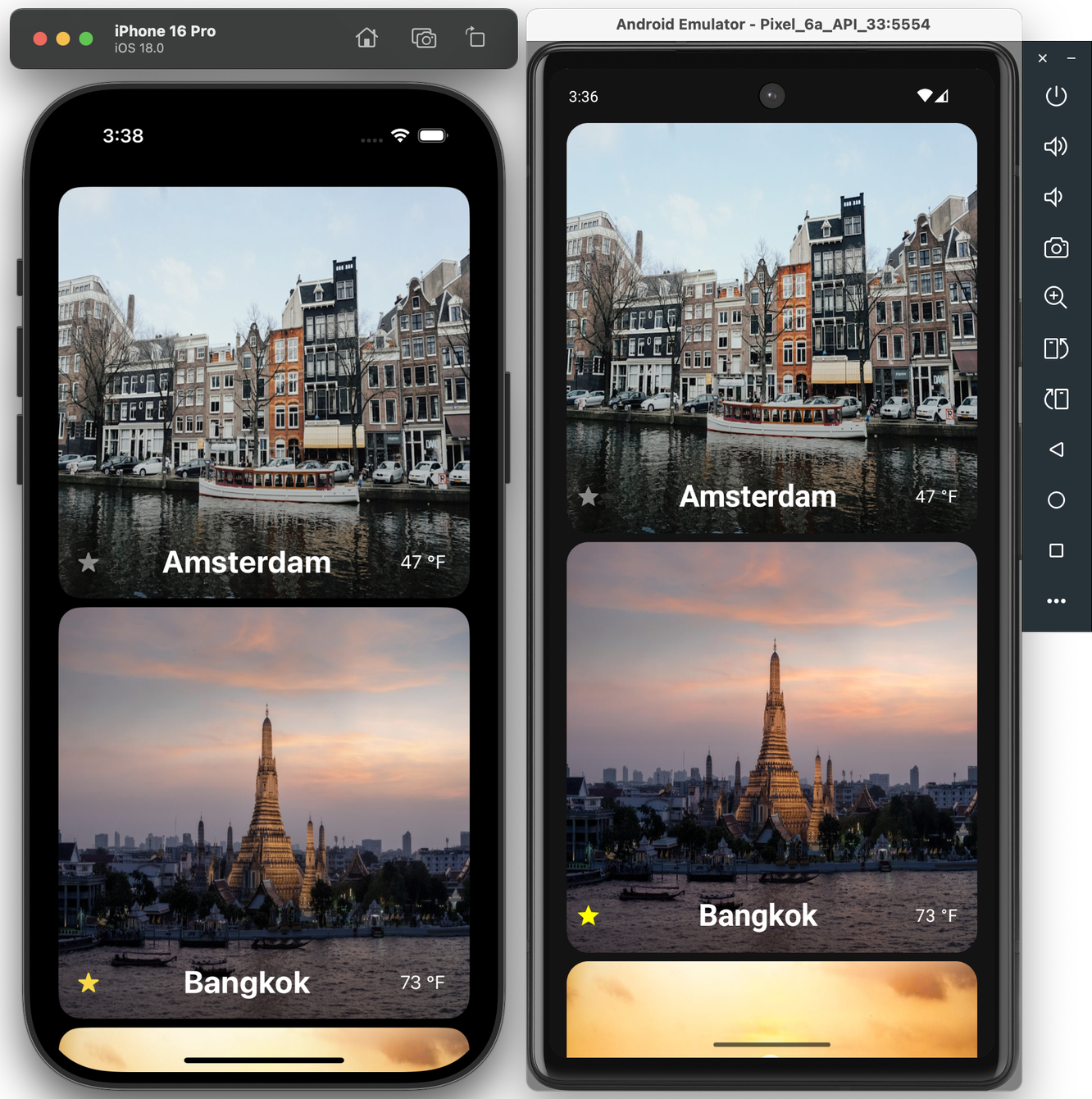
Simulators displaying the same app on iPhone and Android

Our sample apps in this installment are iOS and Android versions of TravelPosters, a simple scrolling grid displaying posters of famous cities. Each poster displays the city’s name and current temperature. You can mark your favorites, and these favorites are remembered across app launches.

Our shared TravelPostersModel, therefore, has the following responsibilities:

  • Provide a list of cities. Each city must supply its name and a poster image URL.
  • Fetch the current temperature for each city.
  • Allow the addition and removal of cities from an observable set of favorites.
  • Persist and restore the set of favorites across uses of the app.

And given that our model will power both iOS and Android apps, we should add the following table-stakes Android requirements:

  • We must be able to access our Swift model API naturally in Kotlin, just as in Swift.
  • Our mutable set of favorites must be observable not only to SwiftUI state tracking, but to Jetpack Compose state tracking as well.

Fortunately, Swift is more than up to the task of meeting our model’s general requirements, and Skip’s SkipFuse technology will handle transparently bridging it all to Kotlin and Compose!

If you plan on following along and you haven’t already installed Skip, follow Part 2’s installation instructions. This will quickly get you up and running with Skip, its requirements, and the native Swift Android toolchain.

As a good, modern citizen of the Swift ecosystem, Skip works atop Swift Package Manager. Our shared model will be a Swift package configured to use skipstone, the Skip build plugin. You could create this package and configure its use of Skip by hand, but Skip provides tooling to help.

First, create the folder structure we’ll use to hold our shared model as well as our iOS and Android apps. You do not have to house your apps together, but this is the structure we’ll use in this article.

mkdir travelposters
cd travelposters
mkdir iOS
mkdir Android

Now use the skip tool to create the shared model package:

skip init --native-model travel-posters-model TravelPostersModel
Output of running skip init --native-model

This command generates a travel-posters-model SwiftPM package containing the TravelPostersModel Swift module. The --native-model option ensures that the module will already be configured to compile natively on Android, and to bridge its public API to Kotlin. Our particular needs, however, require a couple of additional steps.

  1. We know that parts of our model will be @Observable. In order for @Observables to work on Android, we need a dependency on skip-model. Edit the generated Package.swift to add it:

    ...
    let package = Package(
    name: "travel-posters-model",
    ...
    dependencies: [
    .package(url: "https://source.skip.tools/skip.git", from: "1.2.0"),
    .package(url: "https://source.skip.tools/skip-model.git", from: "1.0.0"), // <-- Insert
    .package(url: "https://source.skip.tools/skip-fuse.git", "0.0.0"..<"2.0.0")
    ],
    targets: [
    .target(name: "TravelPostersModel",
    dependencies: [
    .product(name: "SkipFuse", package: "skip-fuse"),
    .product(name: "SkipModel", package: "skip-model") // <-- Insert
    ],
    plugins: [.plugin(name: "skipstone", package: "skip")]),
    ...
    ]
    )
  2. The --native-model option we passed to skip init will configure Skip to automatically bridge our model’s public API from compiled Swift to Android’s ART Java runtime. This is done through the skip.yml configuration file included in every Skip module. By default, however, Skip assumes that you’ll be bridging to transpiled Swift and SwiftUI code. Instead, we’ll be consuming the model from pure Kotlin, so we want to optimize the bridging for Kotlin compatibility. We do this by editing the Sources/TravelPostersModel/Skip/skip.yml file to look like this:

    skip:
    mode: 'native'
    bridging:
    enabled: true
    options: 'kotlincompat'

You can read more about the magic of bridging in the documentation.

With these updates in place, we’re now ready to iterate on our shared Swift model code!

The beauty of cross-platform Swift code is how boring it is. You can browse our model’s complete content on GitHub, but it looks more or less exactly as you’d expect given the previously-enumerated requirements. It has some Codable structs to represent cities and weather:

public struct City : Identifiable, Codable {
public typealias ID = Int
public let id: ID
public let name: String
public let imageURL: URL
...
}
public struct WeatherConditions : Hashable, Codable {
public let temperature: Double // 16.2
public let windspeed: Double // 16.6
...
}

The model uses URLSession and JSONDecoder to fetch the current weather:

public struct Weather : Hashable, Codable {
public let latitude: Double // e.g.: 42.36515
public let longitude: Double // e.g.: -71.0618
public let time: Double // e.g.: 0.6880760192871094
...
public let conditions: WeatherConditions
enum CodingKeys: String, CodingKey {
case latitude = "latitude"
case longitude = "longitude"
case time = "generationtime_ms"
...
case conditions = "current_weather"
}
public static func fetch(latitude: Double, longitude: Double) async throws -> Weather {
let factor = pow(10.0, 4.0) // API expects a lat/lon rounded to 4 places
let lat = Double(round(latitude * factor)) / factor
let lon = Double(round(longitude * factor)) / factor
let url = URL(string: "https://api.open-meteo.com/v1/forecast?latitude=\(lat)&longitude=\(lon)&current_weather=true")!
var request = URLRequest(url: url)
request.setValue("skipapp-sample", forHTTPHeaderField: "User-Agent")
let (data, response) = try await URLSession.shared.data(for: request)
return try JSONDecoder().decode(Weather.self, from: data)
}
}

And it includes an @Observable CityManager to provide the list of cities and to persist favorites:

@Observable public final class CityManager {
private static let favoritesURL = URL.applicationSupportDirectory.appendingPathComponent("favorites.json")
public static let shared = CityManager()
private init() {
do {
self.allCities = try JSONDecoder().decode([City].self, from: localCitiesJSON.data(using: .utf8)!).sorted { c1, c2 in
c1.name < c2.name
}
} catch {
logger.log("error loading cities: \(error)")
}
do {
self.favoriteIDs = try JSONDecoder().decode([City.ID].self, from: Data(contentsOf: Self.favoritesURL))
logger.log("loaded favorites: \(self.favoriteIDs)")
} catch {
logger.log("error loading favorites: \(error)")
}
}
public var allCities: [City] = []
public var favoriteIDs: [City.ID] = [] {
didSet {
logger.log("saving favorites: \(self.favoriteIDs)")
do {
try FileManager.default.createDirectory(at: Self.favoritesURL.deletingLastPathComponent(), withIntermediateDirectories: true)
try JSONEncoder().encode(favoriteIDs).write(to: Self.favoritesURL)
} catch {
logger.log("error saving favorites: \(error)")
}
}
}
}
private let localCitiesJSON = """
...
"""

While this code is generally pretty standard, it does contain a few concessions to the realities of current Swift support on Android:

  • In files that create an OSLog.Logger or that define an @Observable type, we also import SkipFuse. In fact, Skip will surface a build warning in Xcode if you attempt to define an @Observable in a bridged file that doesn’t import the SkipFuse framework!

    SkipFuse is an umbrella framework that “fuses” the Swift and Android worlds. It makes sure that your OSLog messages are routed to Android’s Logcat logging service, that your @Observable state is tracked by Jetpack Compose, and more - all without changes to your normal code path.

  • You may notice other unfamiliar import patterns as well. For example, Foundation on Linux and Android is divided into Foundation, FoundationNetworking, FoundationInternationalization, and FoundationXML. So in Weather.swift where we use URLSession, we have the following imports:

    import Foundation
    #if canImport(FoundationNetworking)
    import FoundationNetworking
    #endif
  • Though we do not need them here, you may encounter #if os(Android) checks to conditionalize code for Android or Darwin platforms in other Android-supporting codebases, just as you’ll often find #if os(macOS) conditions in macOS-supporting codebases.

  • We’re loading our cities JSON from a static string, but more tyically you would load the contents from a resource. SkipFuse supports bundling Swift module resources as idiomatic Android assets.

  • While many Swift packages like Apple’s swift-algorithms compile cleanly for Android out of the box, others will require minor changes, and still others - particularly those that tie into the hardware or use one of Apple’s many OS “Kits” - may never work on Android. Swift on Android is still in its infancy, and it will take time for developers to build and test their packages on this new-to-Swift platform.

You can read much more about both the advantages and the limitations of native Swift on Android in our full native Swift documentation. For the most part, though, relax and enjoy coding with the full power and expressiveness of Swift!

Due to limitations on build plugins, building the travel-posters-model package in Xcode does not perform an Android build. It only builds for iOS. Rather, there are two simple ways to build for Android: use skip export to create an Android library archive, which we explore later in this article, or run the unit tests.

Skip configures every native module with an extra unit test that builds the module for Android, transpiles your XCTests to JUnit tests, and runs them. Thus you’ll see two sets of results on every test run: first from XCTest and then from JUnit on Android. Frequently running your tests is a great way to catch both logic bugs and Android compilation errors early. Read more in the native testing documentation.

Because our model is a standard SwiftPM package, you incorporate and use it on iOS like any other package. We briefly outline the steps we took to create and configure our sample iOS app below. Feel free to skip this section!

  1. Use Xcode to create a new Workspace in the travelposters directory alongside the travel-posters-model package.

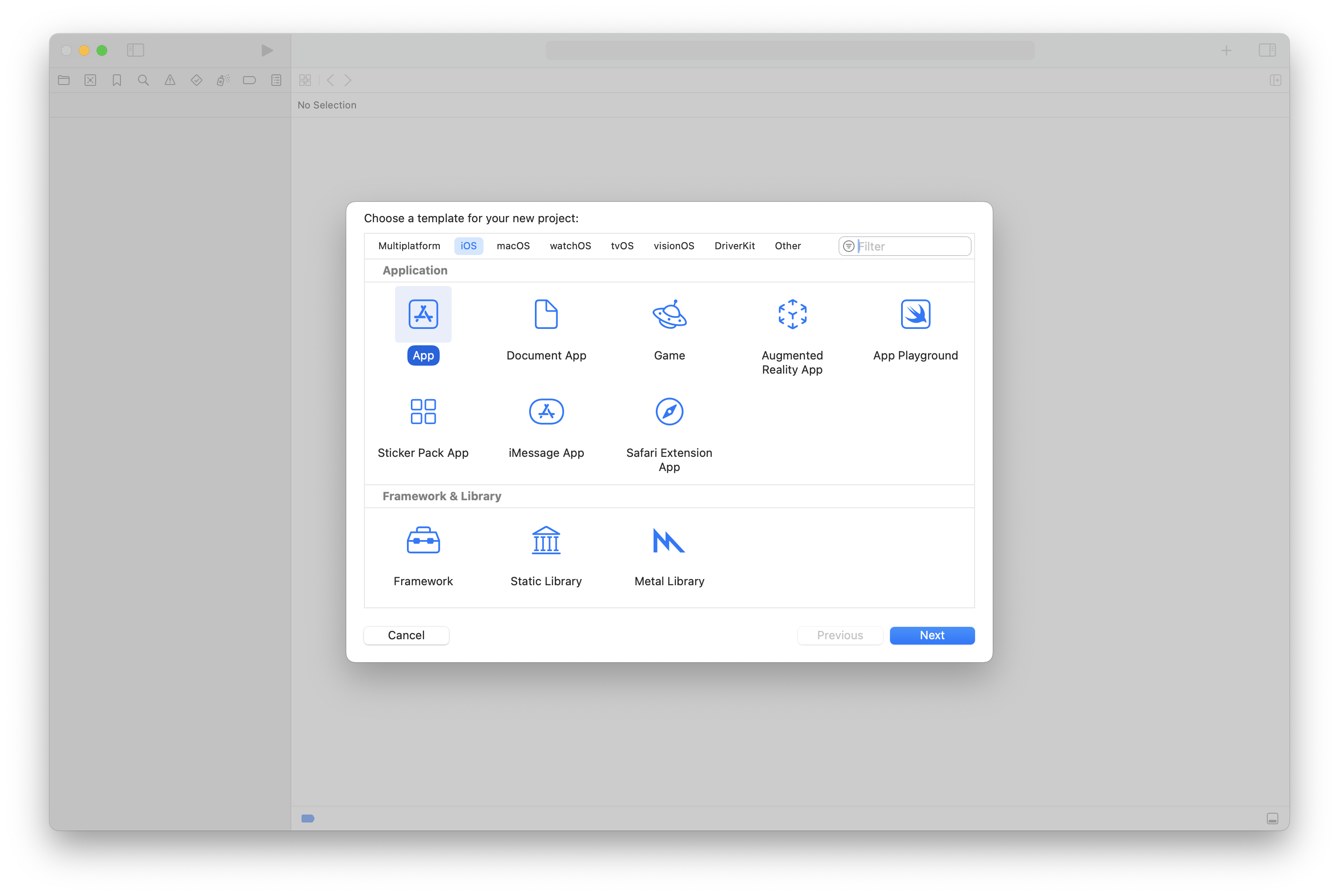
  2. Use Xcode to create a new App project in the travelposters/iOS directory. Close the project after creating it, because we’re going to add it to our Workspace instead.

    Creating a new app project in Xcode
  3. Add the travel-posters-model package to your Workspace.

  4. Add the iOS/TravelPosters/TravelPosters.xcodeproj app to your Workspace.

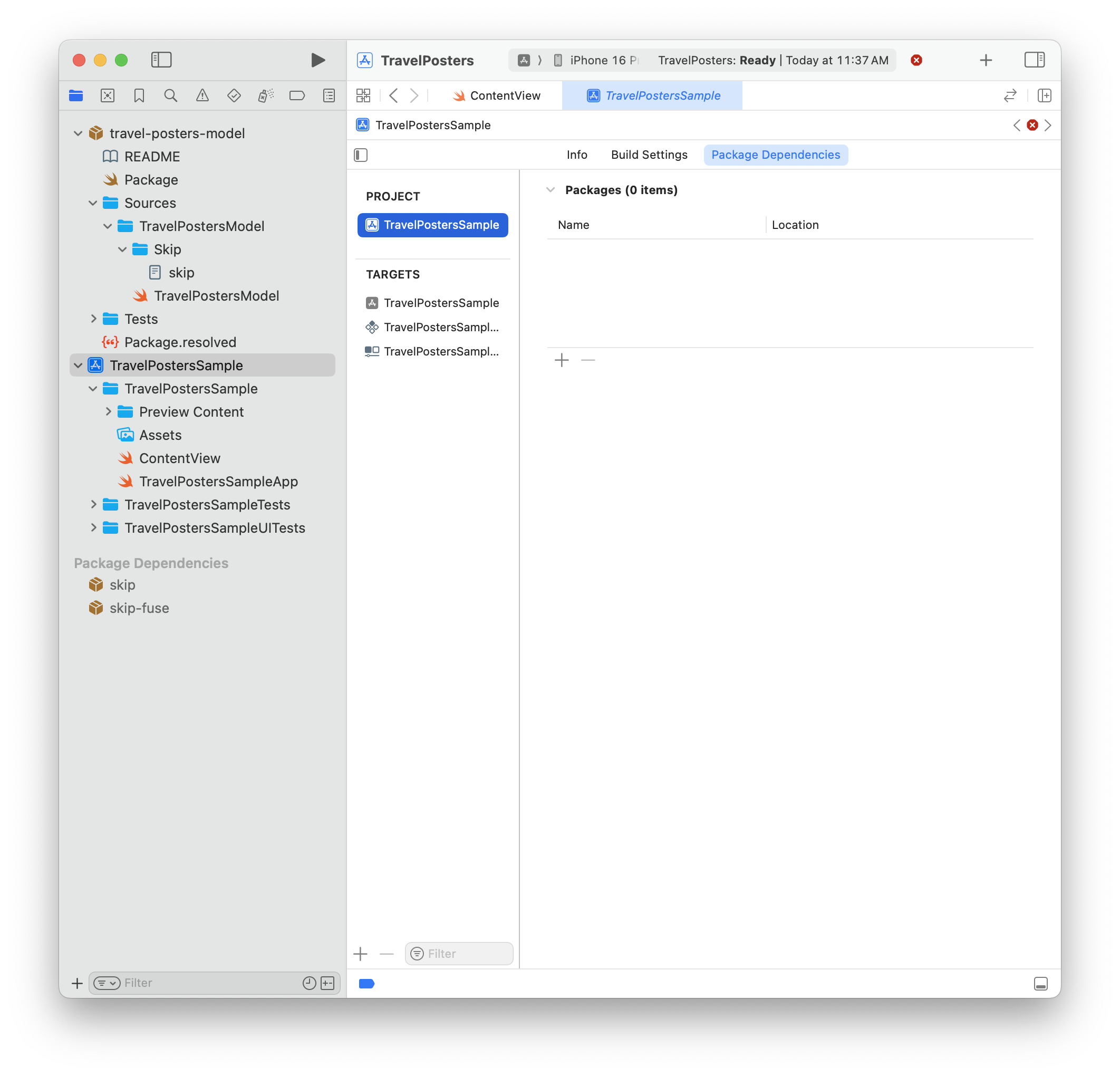
  5. Add a package dependency from the app to the travel-posters-model local package.

    Adding a package dependency in Xcode

You can now use your Xcode Workspace to iterate on both the shared model package and your iOS app. Browse the complete iOS TravelPosters app here.

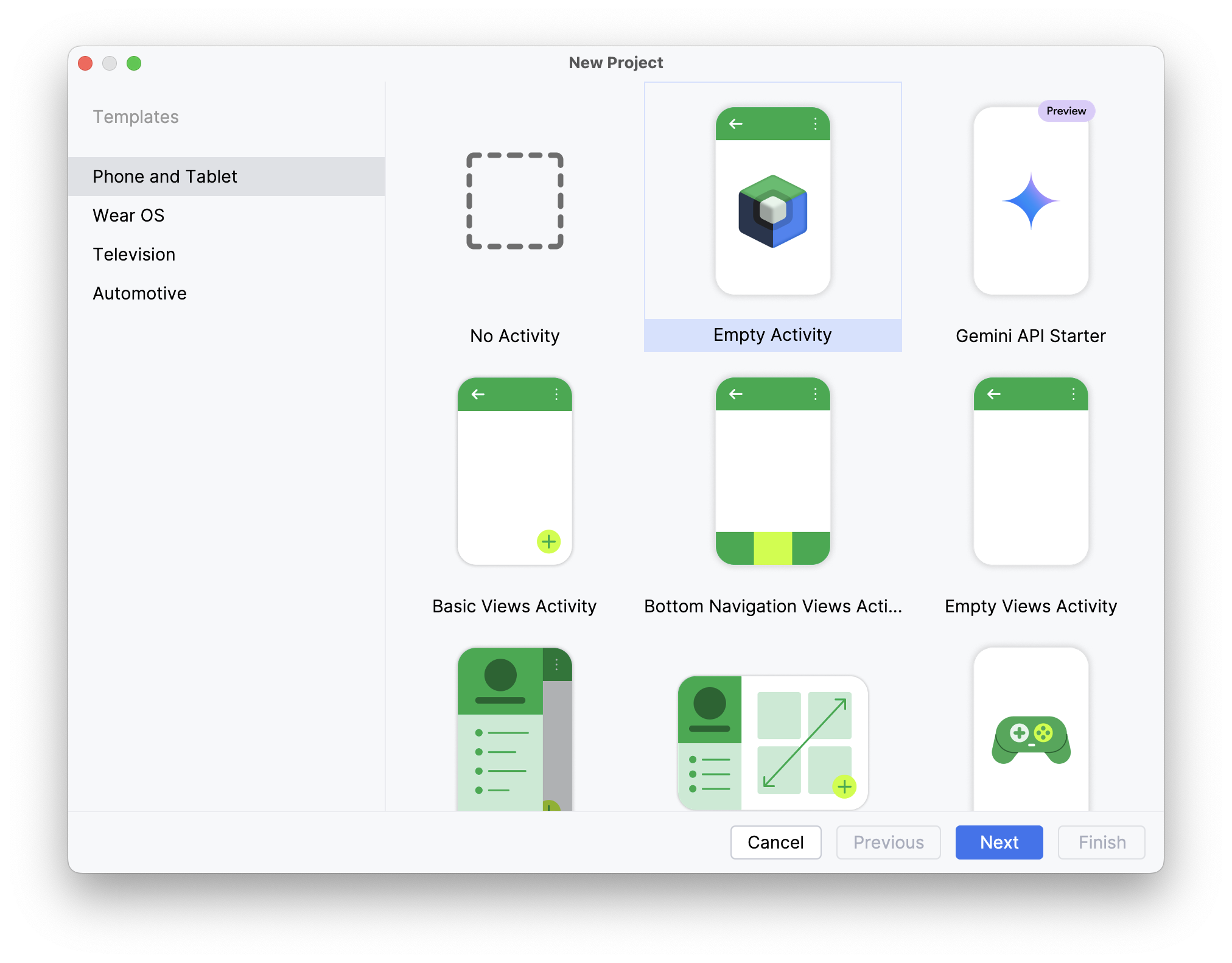
We create our TravelPosters Android app using Android Studio, starting with the “Empty Activity” template. Tell Android Studio to place the app in our travelposters/Android folder.

Creating a new app project in Android Studio

Next, make Android/lib, Android/lib/debug, and Android/lib/release directories. This is where we’ll place our compiled Swift model and Skip libraries.

Creating directories for our compiled Swift model

We must also configure our project to use the new lib directories. Edit the app module’s build.gradle.kts file to add these and other necessary dependencies:

...
dependencies {
...
implementation("org.jetbrains.kotlin:kotlin-reflect:2.1.0") // For reflection used by Skip
implementation("io.coil-kt:coil-compose:2.7.0") // For AsyncImage used to display posters
debugImplementation(fileTree(mapOf(
"dir" to "../lib/debug",
"include" to listOf("*.aar", "*.jar"),
"exclude" to listOf<String>()
)))
releaseImplementation(fileTree(mapOf(
"dir" to "../lib/release",
"include" to listOf("*.aar", "*.jar"),
"exclude" to listOf<String>()
)))
}

To prevent errors in the deployed app, include the following in build.gradle.kts as well:

android {
packaging {
jniLibs {
// doNotStrip is needed to prevent errors like: java.lang.UnsatisfiedLinkError: dlopen failed: empty/missing DT_HASH/DT_GNU_HASH in "/data/app/…/base.apk!/lib/arm64-v8a/libdispatch.so" (new hash type from the future?) (see: https://github.com/finagolfin/swift-android-sdk/issues/67)
keepDebugSymbols.add("**/*.so")
}
}
}

Finally, our app needs internet access permissions to fetch weather and display remote images. Update its AndroidManifest.xml file:

<?xml version="1.0" encoding="utf-8"?>
<manifest xmlns:android="http://schemas.android.com/apk/res/android"
xmlns:tools="http://schemas.android.com/tools">
<uses-permission android:name="android.permission.INTERNET" />
...
</manifest>

Find the complete TravelPosters Android app here. The next sections detail how to export our shared model to the Android app and how to use it from our Kotlin code.

We’ve configured our Android app to look in the Android/lib/debug and Android/lib/release folders for our model, but how do we populate these folders?

The skip export command generates Android archives of a target Swift package and all of its dependencies. It has many options, which you can explore with skip export help. The following Terminal command builds our travel-posters-model and its dependencies for Android in debug mode and places the resulting .aar library archives in the Android/lib/debug directory:

skip export --project travel-posters-model -d Android/lib/debug/ --debug

To generate release archives instead:

skip export --project travel-posters-model -d Android/lib/release/ --release
Syncing Android Studio

There are many ways to automate this process, from simple scripting to git submodules to publishing the Android travel-posters-model output to a local Maven repository. Use whatever system fits your team’s workflow best.

For example, to re-build and re-launch the app after making changes to the Swift code, you might run:

Terminal window
skip export --project travel-posters-model -d Android/lib/debug/ --debug
gradle -p Android installDebug
adb shell am start -a android.intent.action.MAIN -c android.intent.category.LAUNCHER -n tools.skip.travelposters/tools.skip.travelposters.MainActivity

Now that we’ve set up the Android app to depend on our shared Swift model, what is it like to actually use the model in Kotlin and Compose code? The answer is that - thanks to SkipFuse bridging - it’s surprisingly natural!

Before we dive into using our model, though, we have to make a single call in our Android app’s main Activity to initialize integration. Skip has extended Foundation.ProcessInfo for this purpose:

MainActivity.kt
...
class MainActivity : ComponentActivity() {
override fun onCreate(savedInstanceState: Bundle?) {
super.onCreate(savedInstanceState)
skip.foundation.ProcessInfo.launch(context = this) // <-- INSERT
enableEdgeToEdge(statusBarStyle = SystemBarStyle.dark(Color.TRANSPARENT))
setContent {
...
}
}
...
}

No additional changes to Android’s normal startup code path are needed.

This article is not a tutorial on using Jetpack Compose. Rather, we will focus on the places where our Android UI interacts with Swift, starting with the CityList function for displaying the scrolling list of posters:

...
import travel.posters.model.CityManager // <-- 1
@Composable
fun CityList(...) {
val cityManager = CityManager.shared // <-- 2
LazyVerticalGrid(...) {
for (city in cityManager.allCities) { // <-- 3
item {
CityPoster(city, isFavorite = { cityManager.favoriteIDs.contains(city.id) }, setFavorite = { isFavorite ->
// 4
val favoriteIDs = cityManager.favoriteIDs.toMutableList()
if (isFavorite && !favoriteIDs.contains(city.id)) {
favoriteIDs.add(city.id)
cityManager.favoriteIDs = favoriteIDs
} else if (!isFavorite) {
favoriteIDs.remove(city.id)
cityManager.favoriteIDs = favoriteIDs
}
})
}
}
}
}

We’ve annotated the code above with four numbered comments. Let’s explain each:

  1. Our TravelPostersModel module is exposed to Kotlin in the travel.posters.model package. Skip simply divides your CamelCase Swift module names into ”.”-separated Kotlin package names. Single-word packages are reserved in Kotlin, so if your module name consists of a single word, Skip appends “.module”. For example, module Util turns into Kotlin package util.module.
  2. Your Swift types and API have equivalent names and signatures in Kotlin.
  3. The Swift CityManager.allCities property of type [City] bridges to a Kotlin kotlin.collections.List<City>. Consult the bridging reference to learn more about specific type mappings.
  4. Here we’re performing standard Compose state hoisting to manage the favorites list. Notice that we simply update our model - we do not explicitly trigger a change to the UI. Like SwiftUI, Compose automatically reacts to change in observed state, and SkipFuse ensures that our @Observable CityManager is fully and transparently integrated in Compose state tracking.

Each item in the city list is a CityPoster. Let’s examine that function as well:

...
import travel.posters.model.City
import travel.posters.model.Weather
@Composable
fun CityPoster(city: City, isFavorite: () -> Boolean, setFavorite: (Boolean) -> Unit) {
Box {
val url = city.imageURL // <-- 1
AsyncImage(...)
...
Column(...) {
Row(...) {
...
Icon(imageVector = Icons.Filled.Star,
modifier = Modifier.clickable {
setFavorite(!isFavoriteState.value)
}
)
...
Text(text = city.name, ...)
...
Box {
...
LaunchedEffect(city.id, degrees) {
try { // <-- 2
val c = Weather.fetch( // <-- 3
latitude = city.latitude,
longitude = city.longitude
).conditions.temperature
...
} catch (exception: Exception) {
Log.e("TravelPosters", "Error fetching weather: $exception")
}
}
...
}
}
}
}
}

Once again, we’ve added numbered comments to points of interest in the code above:

  1. In addition to bridging your own types as well as built-in types like numbers, strings, arrays, and dictionaries, SkipFuse translates common Foundation types like Data, Date, URL, and UUID to their Kotlin equivalents. In this case the City.imageURL property of type Foundation.URL maps to a java.net.URI. Again, see the bridging reference for details.
  2. Our Weather.fetch Swift function is marked throws. If the native call produces an error, the bridged Kotlin call with throw a standard Kotlin exception.
  3. Weather.fetch is an async Swift function. Skip therefore generates a Kotlin suspend function and integrates the call with Kotlin coroutines. Hence the use of a LaunchedEffect in our Compose code.

As you can see, you invoke your Swift APIs naturally in Kotlin - almost exactly as if they were written in Kotlin themselves! Swift custom types, built-in types, and common Foundation types all translate to Kotlin/Java equivalents, thrown errors cause Kotlin exceptions, async Swift functions use Kotlin coroutines, etc. The goal is that using a module written in Swift should be almost indistinguishable from using a package written in Kotlin.

If you haven’t already, check out Part 1 and especially Part 2 of this series.

If you’d like to learn much more about SkipFuse, bridging, and native Swift on Android, consider reading our Native Swift Tech Preview documentation.

You may also be interested in the nascent swift-java project, which is designed to facilitate communication between server-side Swift and Java libraries. While that is a very different environment than Android apps interacting with modern Kotlin APIs, they do overlap, and you might find swift-java's bridging approach useful. We anticipate that as it matures, this bridge and Skip’s native bridging will begin to align more closely in their techniques and implementation details.

Additional posts in the native Swift on Android series:

Many cross-platform solutions allow you to share code, but they typically come with serious downsides:

  • Performance issues from the use of interpreters and/or complex runtimes (Javascript)
  • High memory watermarks and unpredictable hitches caused by garbage collection (Javascript, Kotlin)
  • Lack of transparent integration with SwiftUI and/or Compose state tracking (C/C++)
  • Portability and memory safety concerns (C/C++)

Swift exhibits none of these problems. Its safety, efficiency, and expressiveness make it an ideal choice for cross-platform development. Swift is already a first-class citizen on Apple platforms, and Skip’s native tooling and technology ensures seamless integration with Android and Compose as well.

Whether you’re creating a single dual-platform app like we did in Part 1, separate iOS and Android apps with a shared model layer and bespoke interfaces like we did in this article, or anything in between, sharing code with Swift can save you significant time and effort when writing your app. More important than the up front savings, though, is the savings over time. A shared Swift codebase will eliminate endless hours of repeated bug fixes, enhancements, team coordination, and general maintenance over the life of your software.

Native Swift on Android, Part 1: Setup, Compiling, Running, and Testing

You may already be familiar with Skip as a tool for bringing your Swift iOS apps to Android. Skip takes a novel transpilation approach, where we integrate with the Xcode build system to convert your Swift code into Kotlin. This allows us to create an Android library for every build of your Swift package, or to launch an Android version of your SwiftUI app on every Xcode Run.

We’ve discussed the advantages of a transpilation-based strategy in the past. But despite the fact that Android is a Java/Kotlin-oriented platform, there are also significant benefits to compiled code. Skip has featured support for integrating with C code on both Android and iOS for a long time. It only makes sense that our transpiled Swift code should also integrate with compiled Swift code.

Swift Android Logo {: style=“text-align: center; width: 200px; margin: auto;”}

And so we are excited to announce the first technology preview of a native Swift toolchain and driver for Android! This toolset enables developers to build and run Swift executables and test cases on a connected Android device or emulator.

On a macOS development machine with Xcode and Homebrew installed, you can install the Swift 6.0 Android toolchain by opening a terminal and running:

brew install skiptools/skip/swift-android-toolchain@6.0

This will download the Swift Android SDK, along with all the dependencies it needs to build, run, and test Swift packages on Android.

If you’re an existing Skip user, make sure to also update your skip copy to version 1.1.1+:

skip upgrade

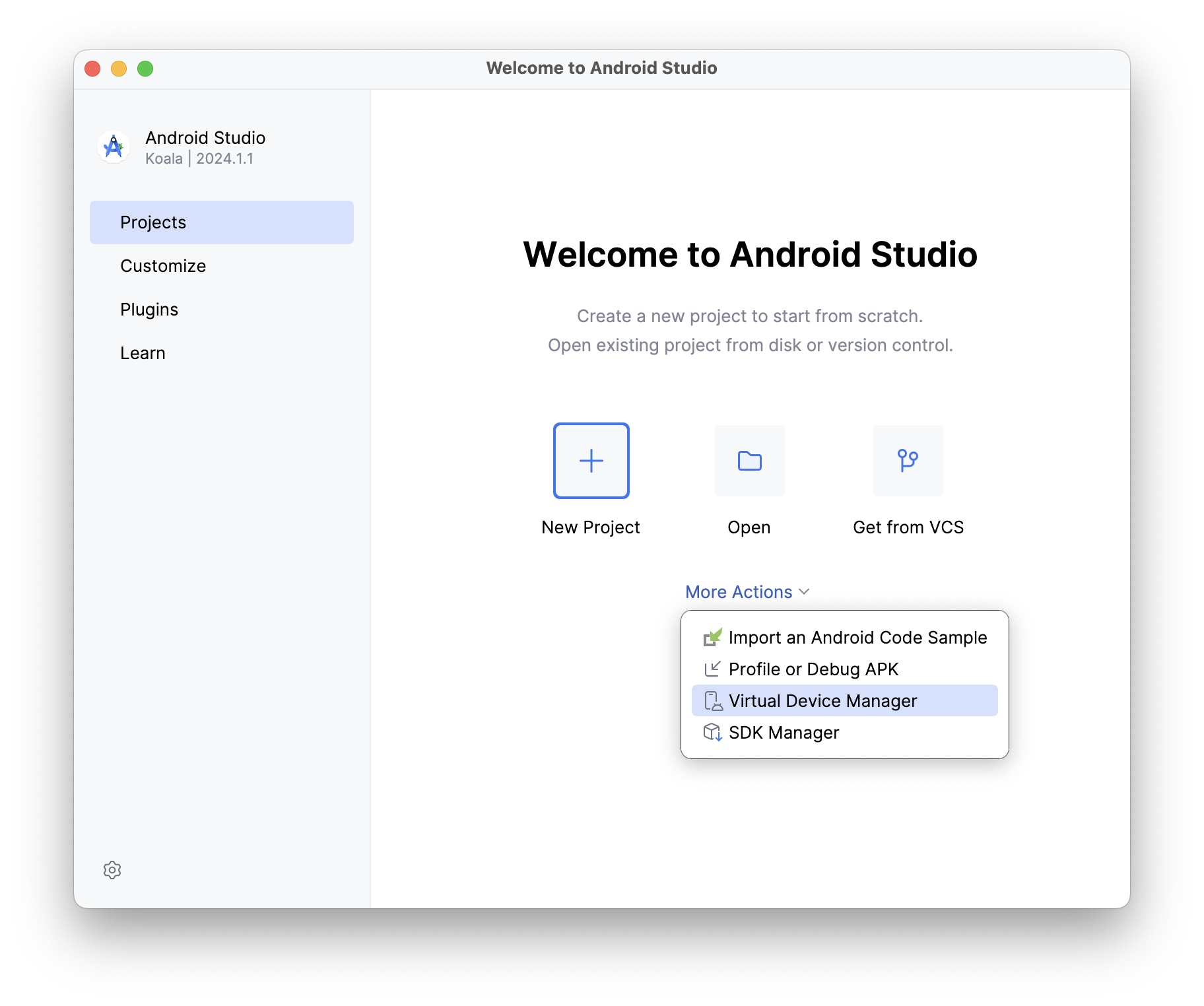
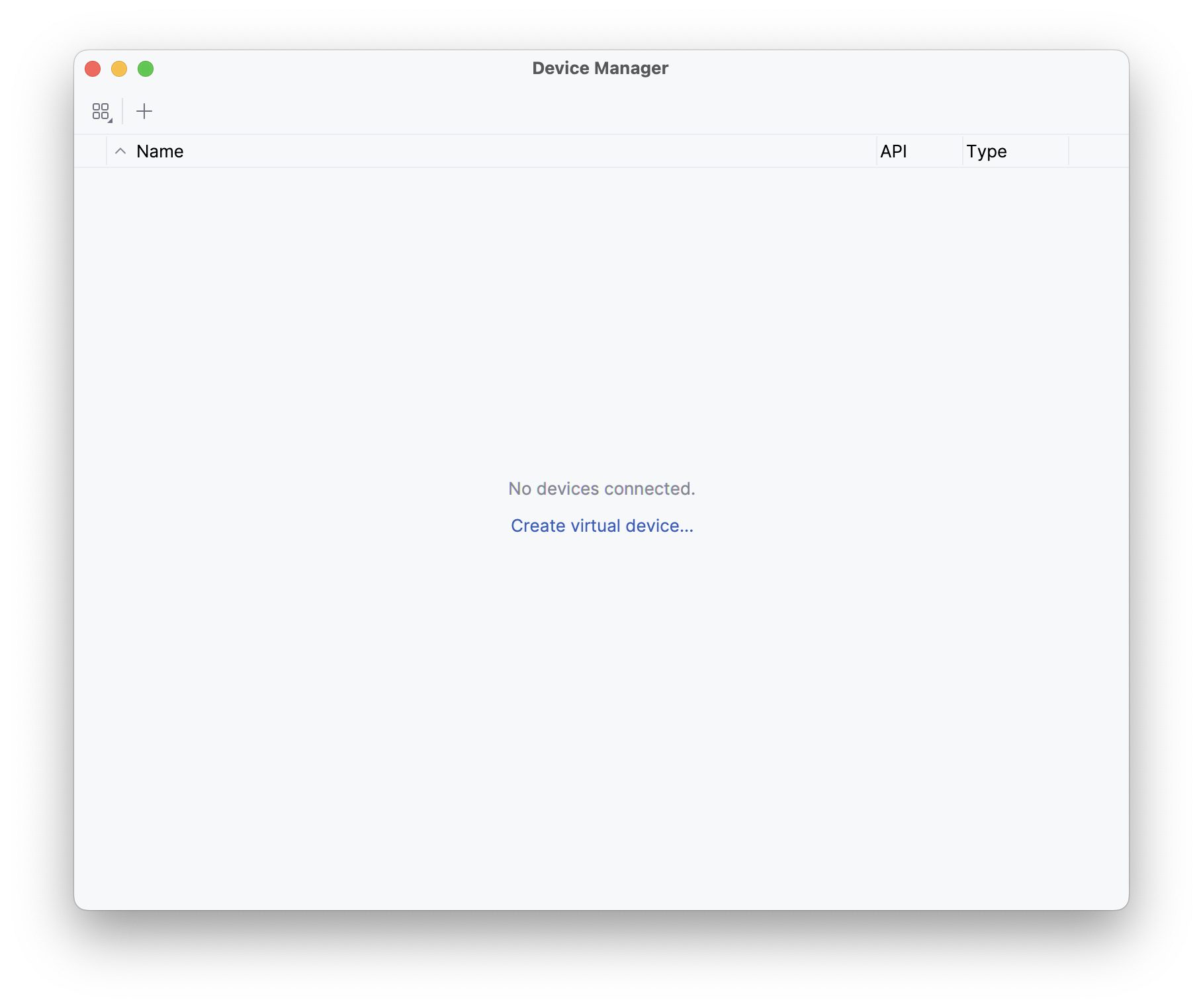
Unless you have an Android device handy, you will need to install the Android emulator in order to run executables and test cases in a simulated Android environment. The simplest way to do this is to download and install Android Studio, then launch it and open the “Virtual Device Manager” from the “More Actions” (or ellipsis menu) of the “Welcome to Android Studio” dialog. On the resulting “Device Manager” screen, select “Create virtual device”.

Android Emulator Setup 1: Welcome Screen Android Emulator Setup 2: Device Manager

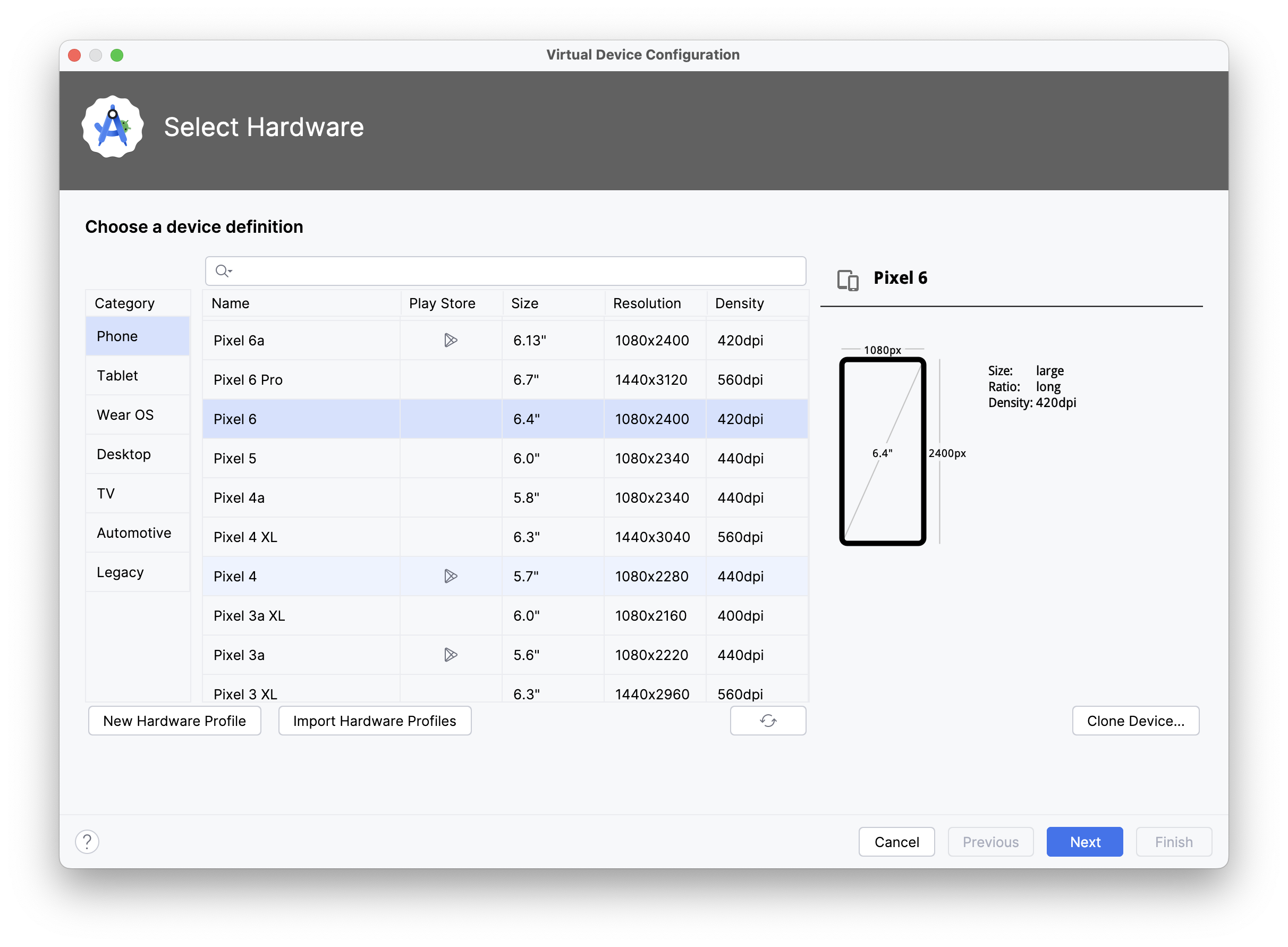
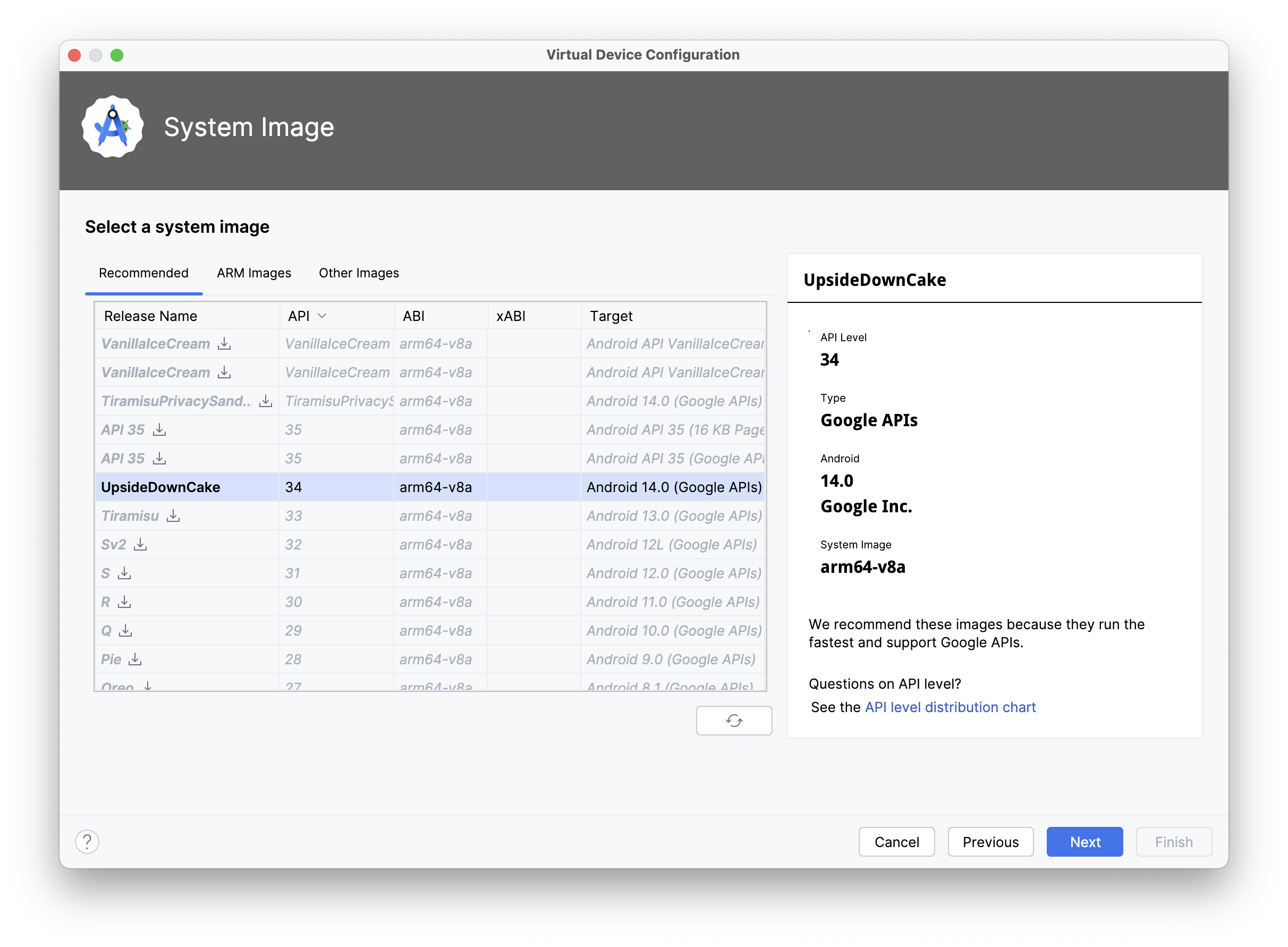
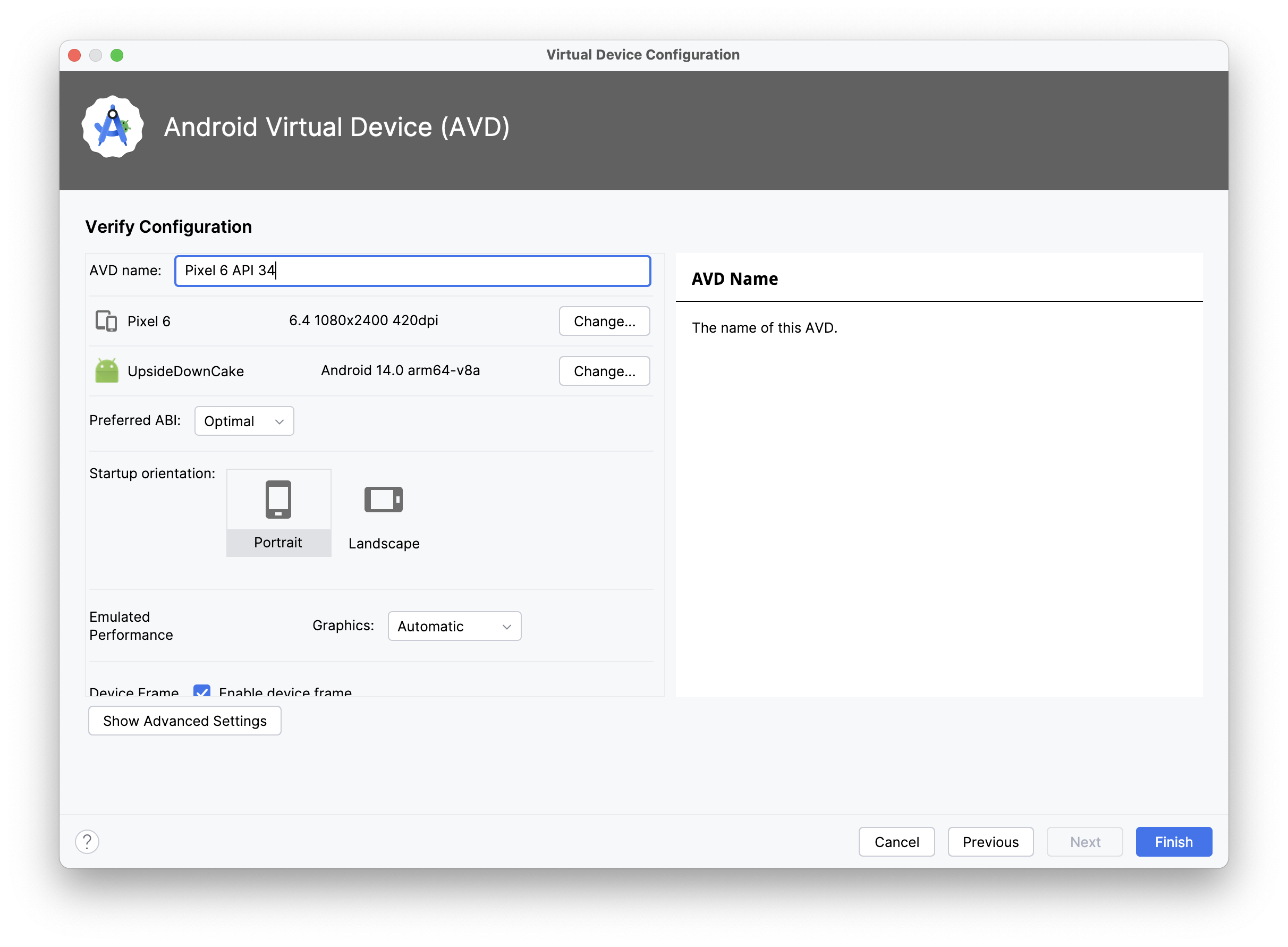
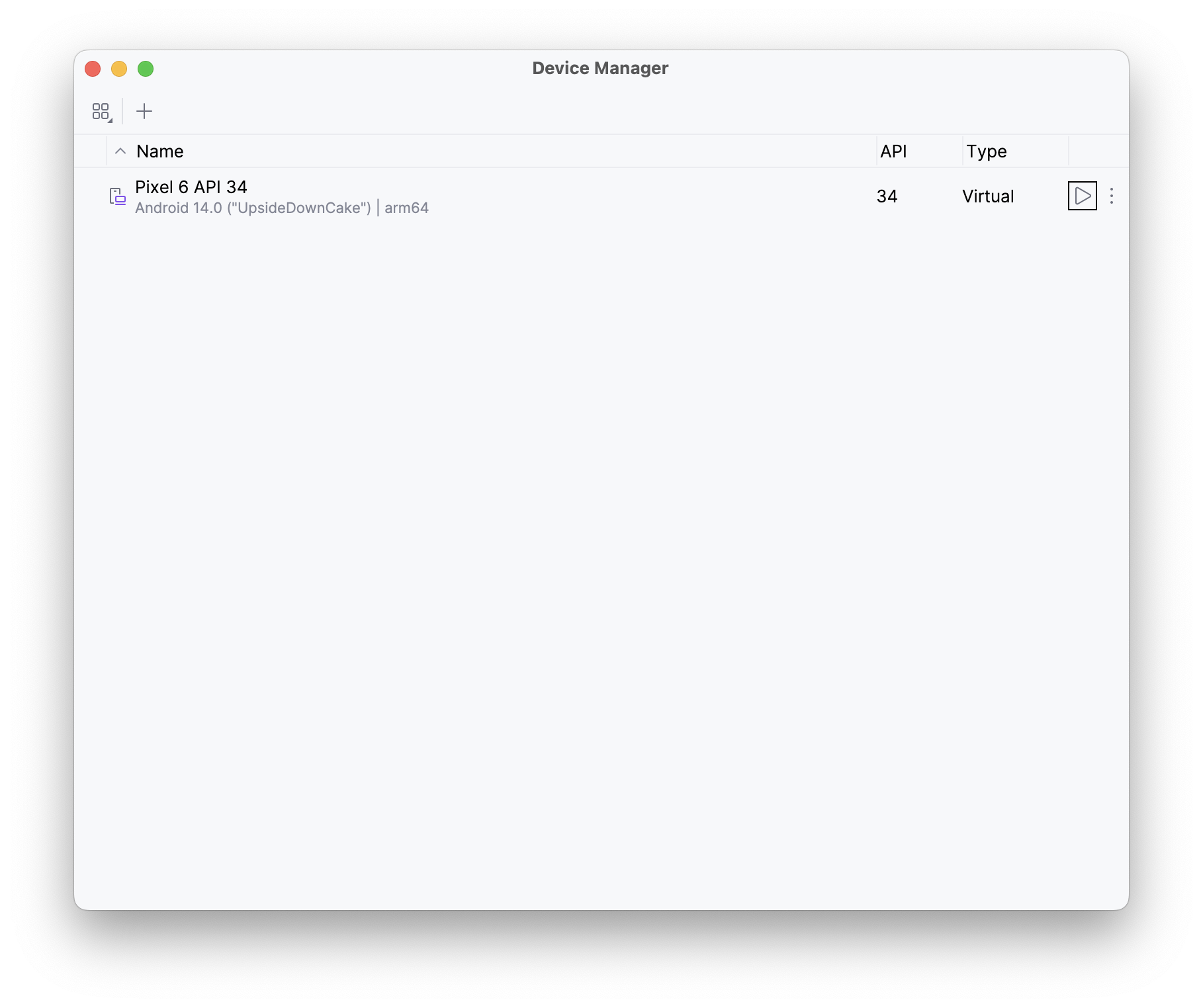
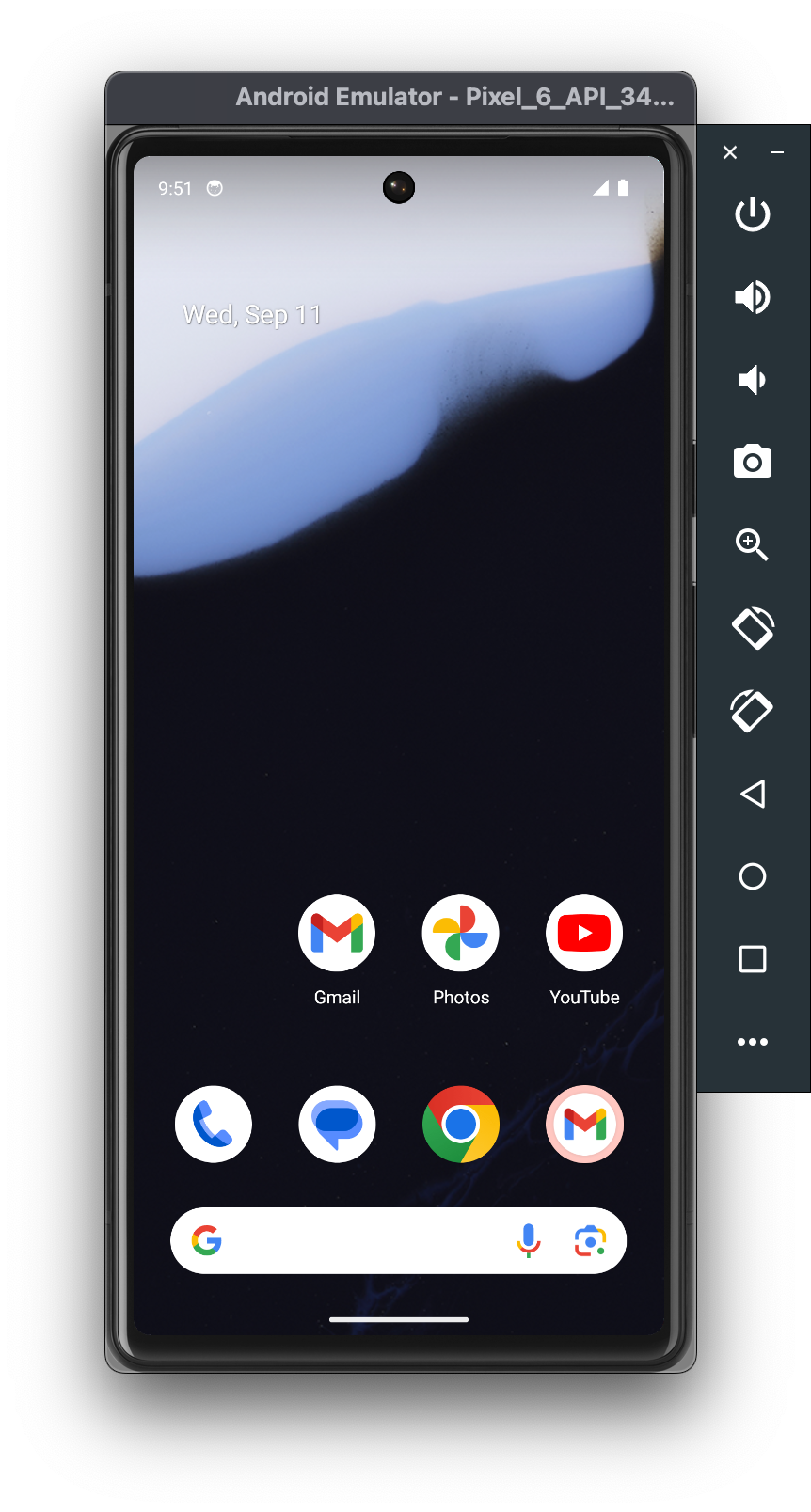
On the “Select Hardware” screen, select a device (e.g., “Pixel 6”) and then on the “Select a system image” screen select one of the recommended images (e.g., “UpsideDownCake”, a.k.a. API 34), and then on the next screen name the device and select “Finish”. When you return to the “Device Manager” screen, you will see a new device (like “Pixel 6 API 34”), which you can then launch with the triangular play button. A little window titled “Android Emulator” will appear and the operating system will boot.

Android Emulator Setup 3: Select Hardware Android Emulator Setup 4: Select System Image Android Emulator Setup 5: Verify Connfiguration
Android Emulator Setup 6: Device Manager Android Emulator Setup 6: Running Emulator

Running Swift “Hello World” on Android

Section titled “Running Swift “Hello World” on Android”

Now that you have everything set up and have launched an Android emulator (or connected a physical Android device with developer mode enabled), it’s time to run some Swift!

Open a terminal and create a new Swift command-line executable called “HelloSwift”:

% mkdir HelloSwift
% cd HelloSwift
% swift package init --type=executable
Creating executable package: HelloSwift
Creating Package.swift
Creating Sources/main.swift

Just to make sure it works on macOS, run the program with the standard swift run command:

% swift run HelloSwift
Building for debugging...
Build of product 'HelloSwift' complete! (1.80s)
Hello, world!

And now, we will build and run it on the Android emulator (or device) using the Swift Android driver, which we include as part of the skip tool that was installed along with the toolchain:

% skip android run HelloSwift
Building for debugging...
Build complete! (10.90s)
[✓] Check Swift Package (0.68s)
[✓] Connecting to Android (0.05s)
[✓] Copying executable files (0.25s)
Hello, world!

Viola! There’s Swift running on Android. And just to prove to that we are really running on a different host, edit the Sources/main.swift file with your favorite editor (or run xed Sources/main.swift to edit it in Xcode), and add a platform check:

#if os(Android)
print("Hello, Android!")
#elseif os(macOS)
print("Hello, macOS!")
#else
print("Hello, someone other platform…")
#endif

Then run it on both macOS and Android:

% swift run HelloSwift
Building for debugging...
Build of product 'HelloSwift' complete! (0.47s)
Hello, macOS!
% skip android run HelloSwift
Building for debugging...
Build complete! (0.89s)
[✓] Check Swift Package (0.23s)
[✓] Connecting to Android (0.04s)
[✓] Copying executable files (0.23s)
Hello, Android!

Command-line tools are fun, but to really exercise Swift on Android, we want to be able to run test suites. This is how developers interested in creating cross-platform frameworks will be able to check for – and resolve – issues with their Swift code arising from platform differences.

Fortunately the skip android driver includes not just the run command, but also the test command, which will connect to the Android emulator/device and run through an XCTest test suite in the same way as swift test does for macOS.

To demonstrate, we can run the test suite for Apple’s swift-algorithms package, to make sure it runs correctly on Android:

% git clone https://github.com/apple/swift-algorithms.git
Cloning into 'swift-algorithms'...
Resolving deltas: 100% (1054/1054), done.
% cd swift-algorithms
% skip android test
Fetching https://github.com/apple/swift-numerics.git from cache
Fetched https://github.com/apple/swift-numerics.git from cache (0.87s)
Computing version for https://github.com/apple/swift-numerics.git
Computed https://github.com/apple/swift-numerics.git at 1.0.2 (0.57s)
Creating working copy for https://github.com/apple/swift-numerics.git
Working copy of https://github.com/apple/swift-numerics.git resolved at 1.0.2
Building for debugging...
[92/93] Linking swift-algorithmsPackageTests.xctest
Build complete! (25.91s)
[✓] Check Swift Package (0.74s)
[✓] Connecting to Android (0.06s)
[✓] Copying test files (0.27s)
Test Suite 'All tests' started at 2024-09-10 20:24:17.770
Test Suite 'swift-algorithms-C7A0585A-0DC2-4937-869A-8FD5E482398C.xctest' started at 2024-09-10 20:24:17.776
Test Suite 'AdjacentPairsTests' started at 2024-09-10 20:24:17.776
Test Case 'AdjacentPairsTests.testEmptySequence' started at 2024-09-10 20:24:17.776
Test Case 'AdjacentPairsTests.testEmptySequence' passed (0.001 seconds)
Test Case 'WindowsTests.testWindowsSecondAndLast' started at 2024-09-10 20:24:20.480
Test Case 'WindowsTests.testWindowsSecondAndLast' passed (0.0 seconds)
Test Suite 'WindowsTests' passed at 2024-09-10 20:24:20.480
Executed 8 tests, with 0 failures (0 unexpected) in 0.004 (0.004) seconds
Test Suite 'swift-algorithms-C7A0585A-0DC2-4937-869A-8FD5E482398C.xctest' passed at 2024-09-10 20:24:20.480
Executed 212 tests, with 0 failures (0 unexpected) in 2.702 (2.702) seconds
Test Suite 'All tests' passed at 2024-09-10 20:24:20.480
Executed 212 tests, with 0 failures (0 unexpected) in 2.702 (2.702) seconds

Everything passes. Hooray!

Not every package’s tests will pass so easily: Android is based on Linux – unlike the Darwin/BSD heritage of macOS and iOS – so there may be assumptions your code makes for Darwin that don’t hold true on Linux. Running through a comprehensive test suite is the best way to begin isolating, and then addressing, these platform differences.

Command line executables and unit tests are all well and good, but “Hello World” is not an app. To create an actual Android app, with access to device capabilities and a graphical user interface, you need to work with the Android SDK, which is written in Java and Kotlin. And you need to package and distribute the app in Android’s own idiomatic way, with self-contained libraries embedded in the application’s assembly.

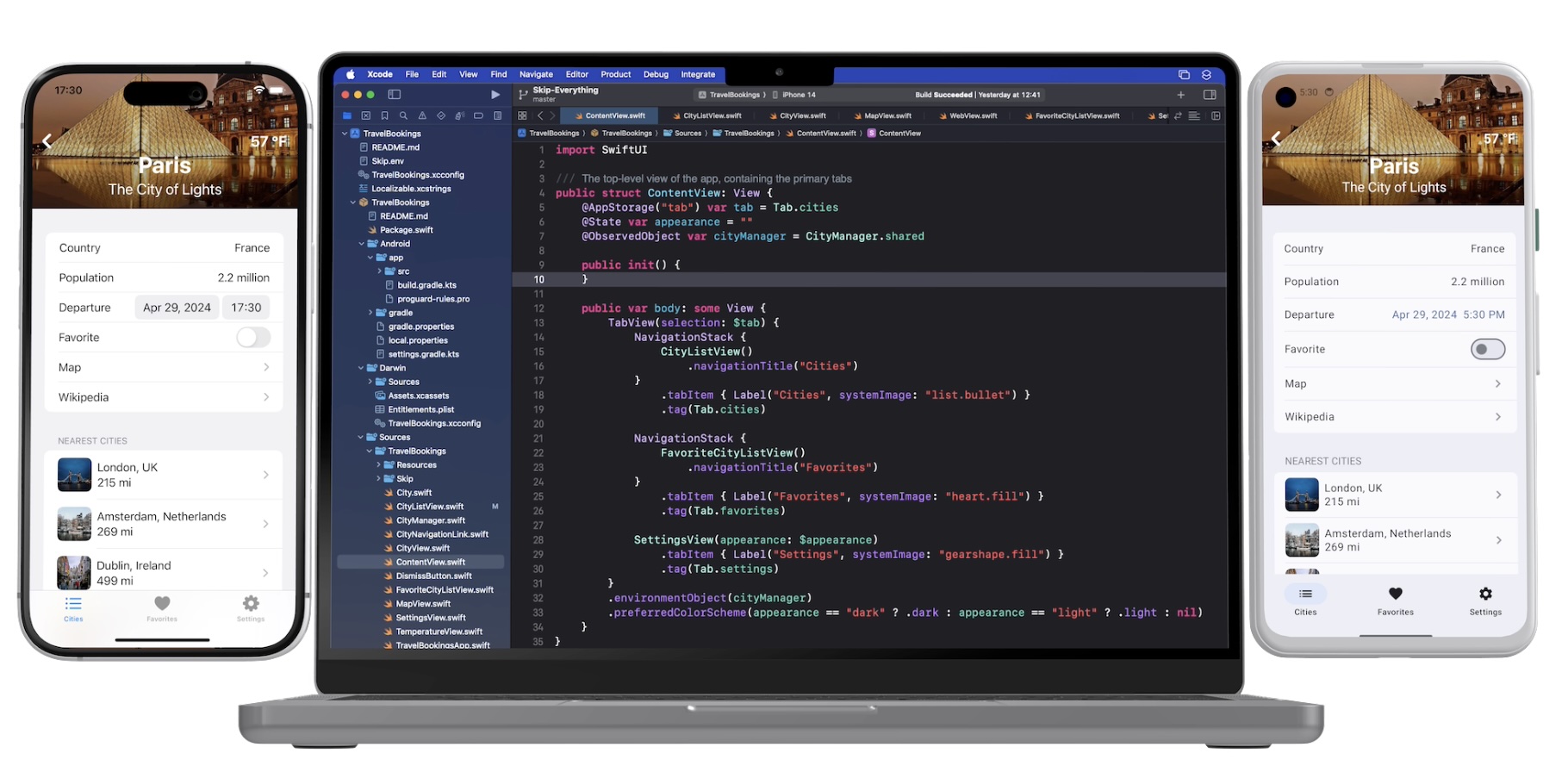
This is where integration with Skip’s broader ecosystem comes into play. Additional installments of this series explore Skip’s system for transparently bridging compiled Swift to Java, Kotlin, and transpiled Swift - including Skip’s existing SwiftUI support for Android. This allows the best of all worlds: transpiled Swift to talk to Android libraries, SwiftUI on top of Jetpack Compose, and business logic and algorithms implemented in compiled Swift!

Screenshot

Additional posts in the native Swift on Android series:

The Swift toolchain for Android is the culmination of many years of community effort, in which we (the Skip team) have played only a very small part.

Even before Swift was made open-source, people have been tinkering with getting it running on Android, starting with Romain Goyet’s “Running Swift code on Android” attempts in 2015, which got some basic Swift compiling and running on an Android device. A more practical example came with Geordie J’s “How we put an app in the Android Play Store using Swift” in 2016, where Swift was used in an actual shipping Android app. Then in 2018, Readdle published “Swift for Android: Our Experience and Tools” on integrating Swift into their Spark app for Android. These articles provide valuable technical insight into the mechanics and complexities involved with cross-compiling Swift for a new platform.

In more recent years, the Swift community has had various collaborative and independent endeavors to develop a usable Swift-on-Android toolchain. Some of the most prominent contributors on GitHub are @finagolfin, @vgorloff, @andriydruk, @compnerd, and @hyp. Our work merely builds atop of their tireless efforts, and we expect to continue collaborating with them in the hopes that Android eventually becomes a fully-supported platform for the Swift language.

Looking towards the future, we are eager for the final release of Swift 6.0, which will enable us to publish a toolchain that supports all the great new concurrency features, as well as the Swift Foundation reimplementation of the Foundation C/Objective-C libraries, which will give us the the ability to provide better integration between Foundation idioms (bundles, resources, user defaults, notifications, logging, etc.) and the standard Android patterns. A toolchain is only the first step in making native Swift a viable tool for building high-quality Android apps, but it is an essential component that we are very excited to be adding to the Skip ecosystem.